
The Osmedeus server also acts as an event receiver, processing events from other runs and handling scheduled scans. See Event-Driven for more details.
https://localhost:8002.
How to Login into Web UI
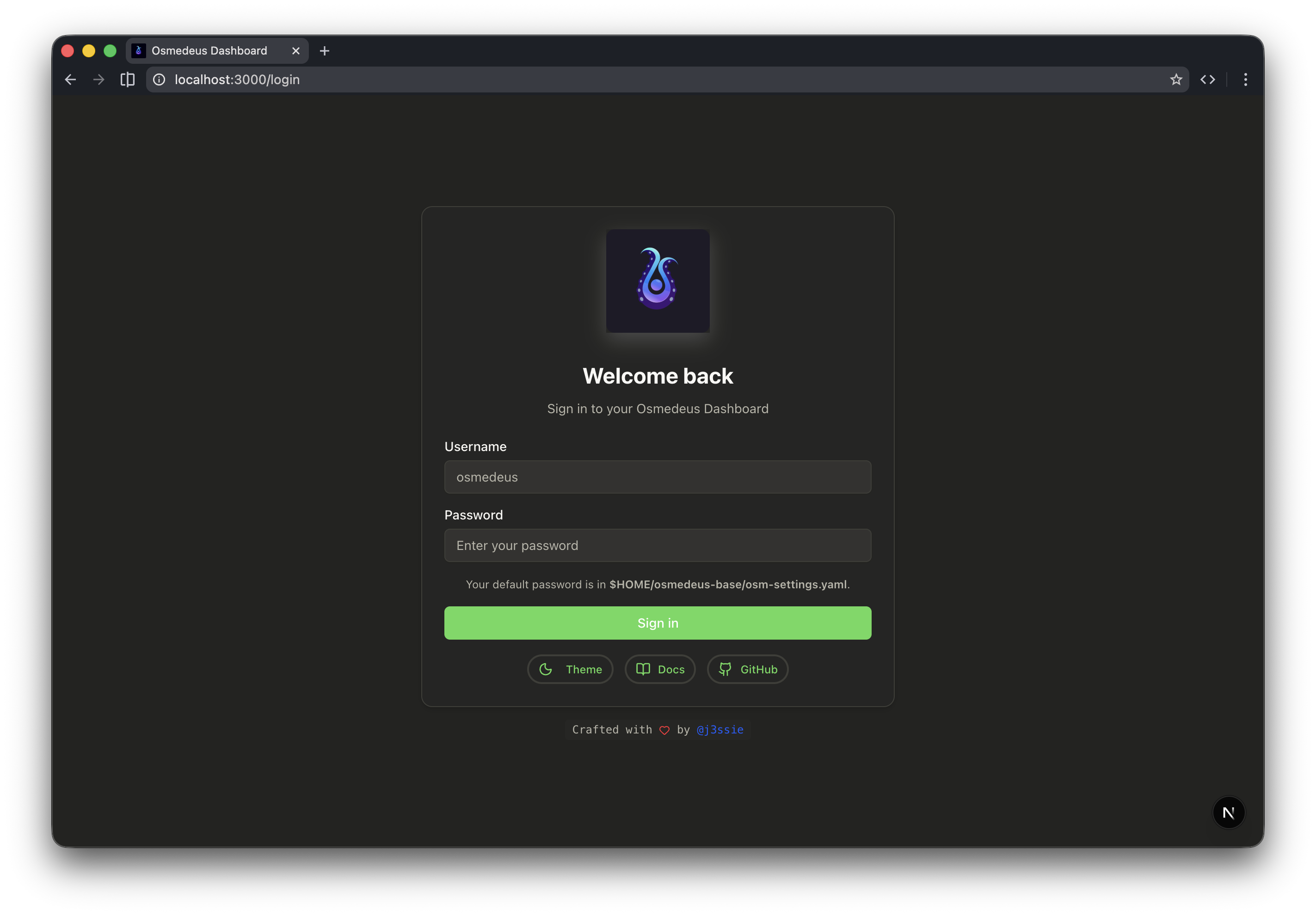
Web UI Login
Many API endpoints are intentionally designed to execute code on your machine, so ensure your web UI and API endpoints are protected with strong credentials. See security-warning for more details
All Web UI Pages
The web UI consists of the following pages that allow you to view and manage your assets, workspaces, vulnerabilities, and other utilities.1. Assets and Workspace
This is the main page of the web UI where you can view and manage your assets, workspaces, vulnerabilities, and artifacts which will be generated by the workflows.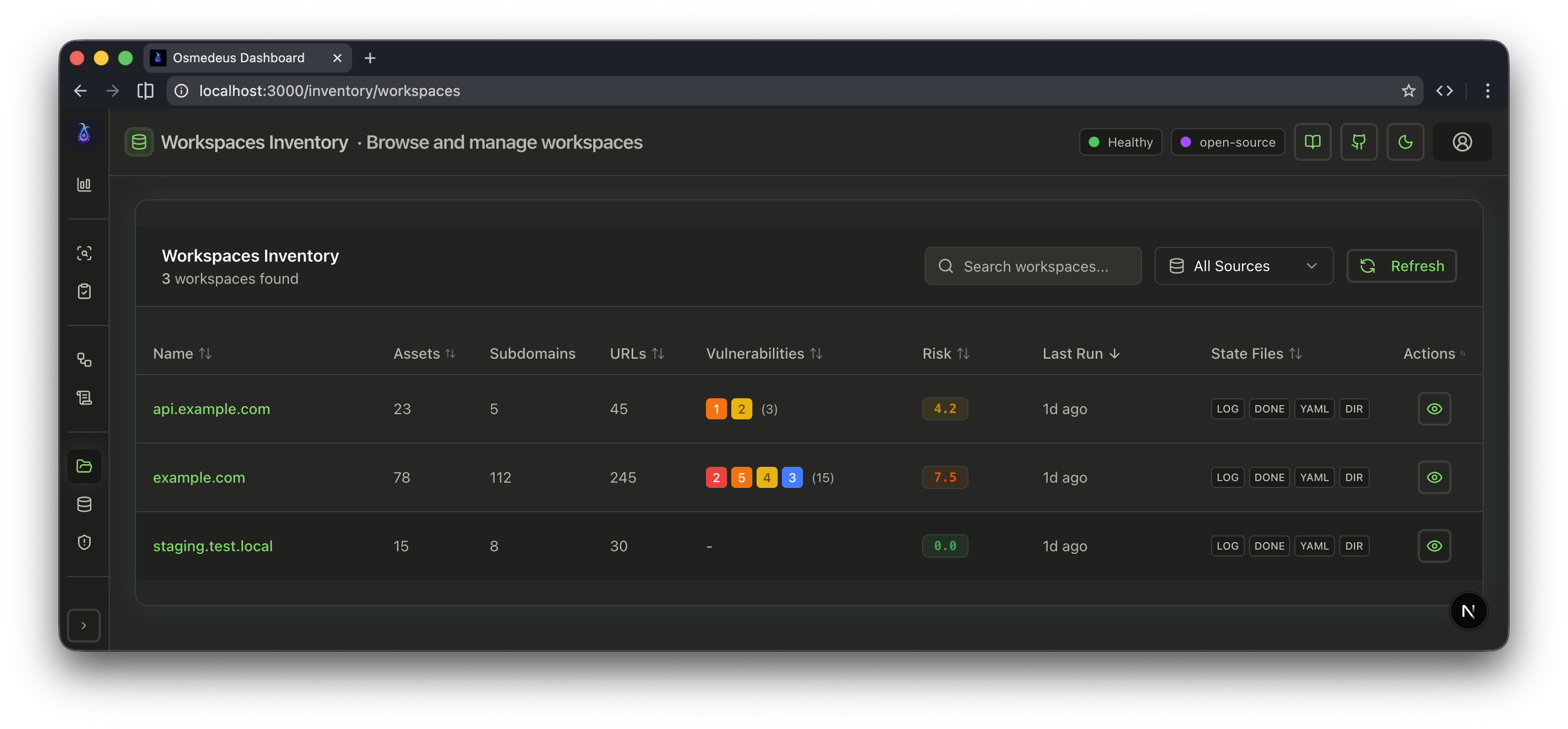
Workspace List
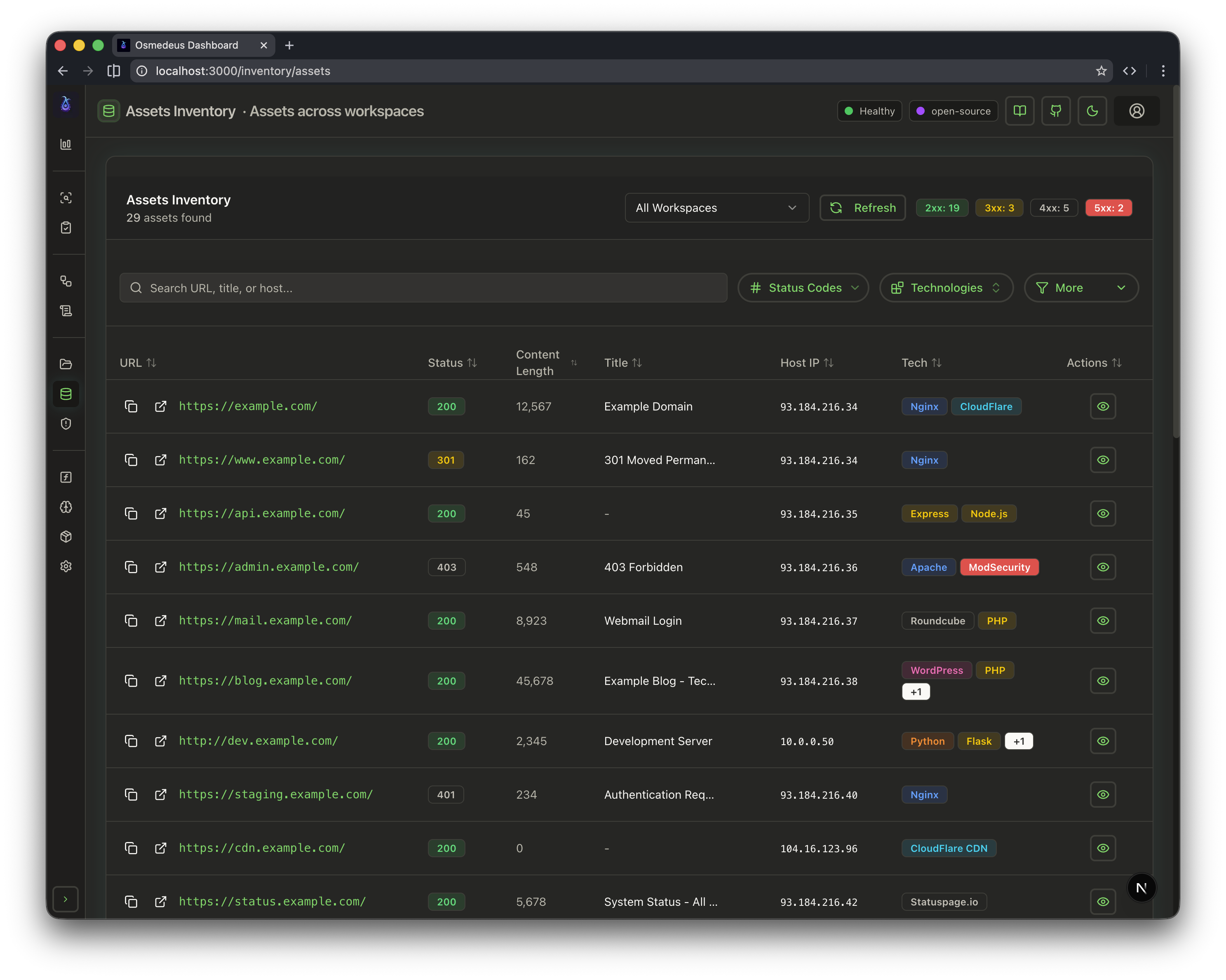
List of Assets
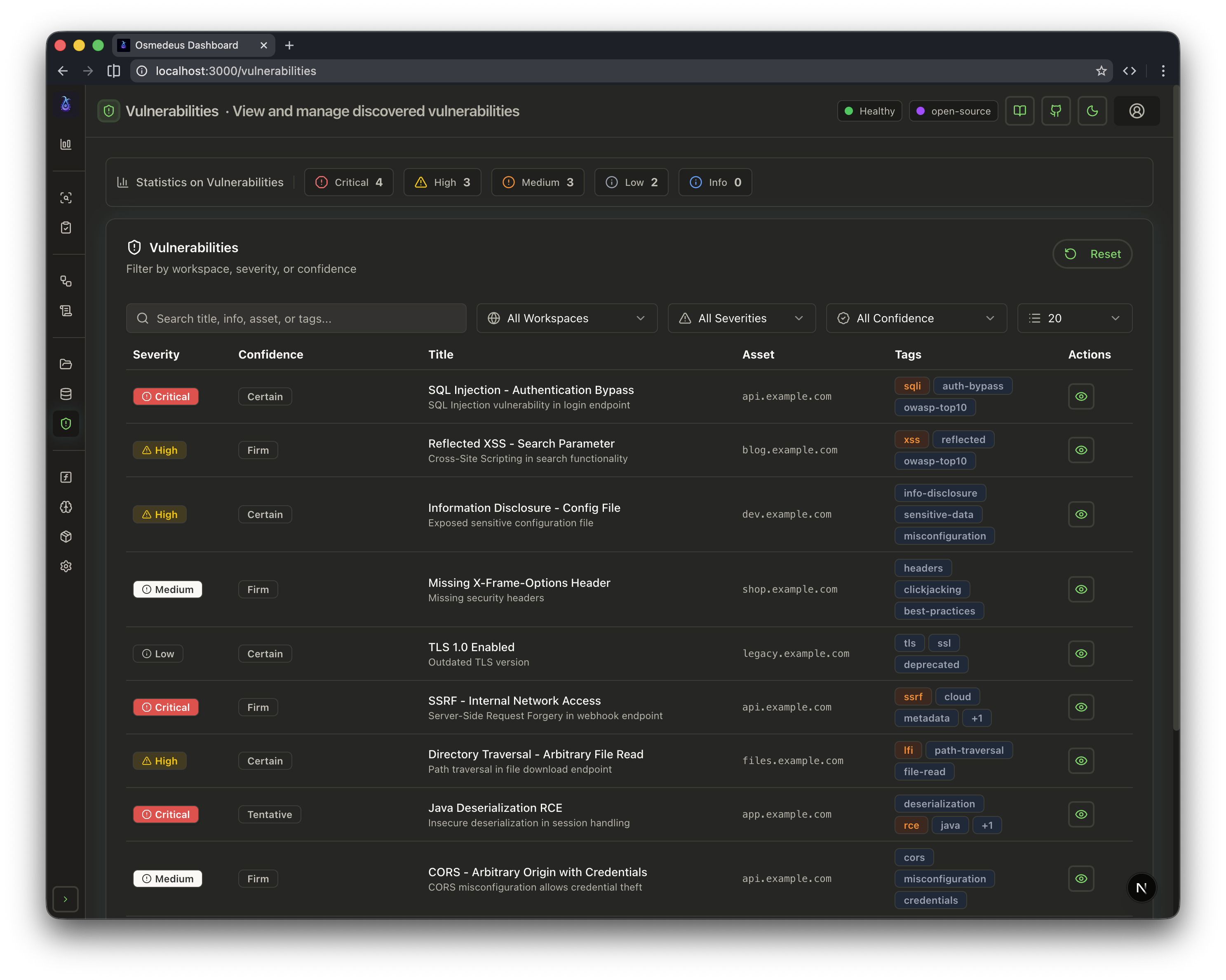
List of Vulnerabilities
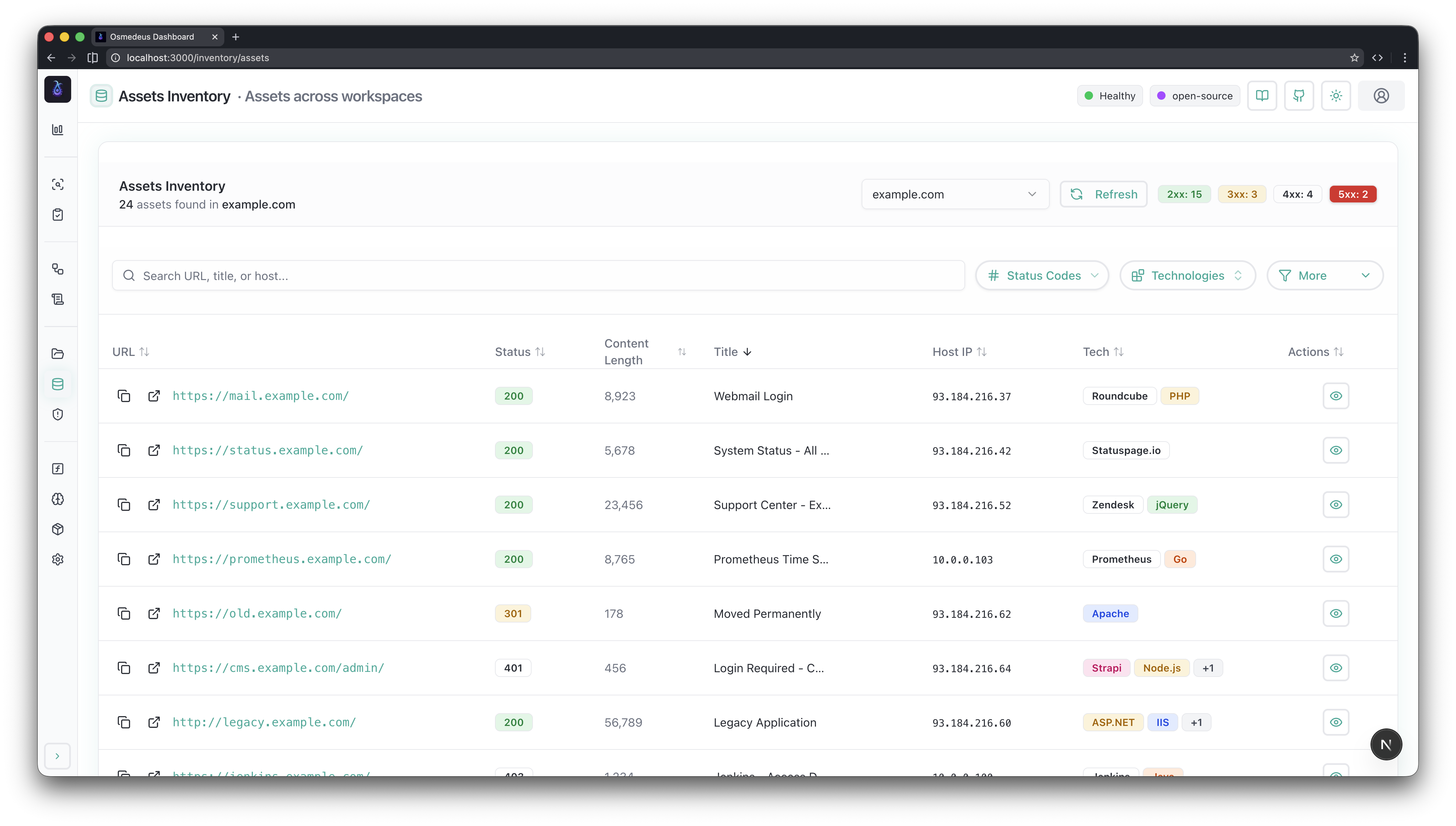
Assets In Light mode
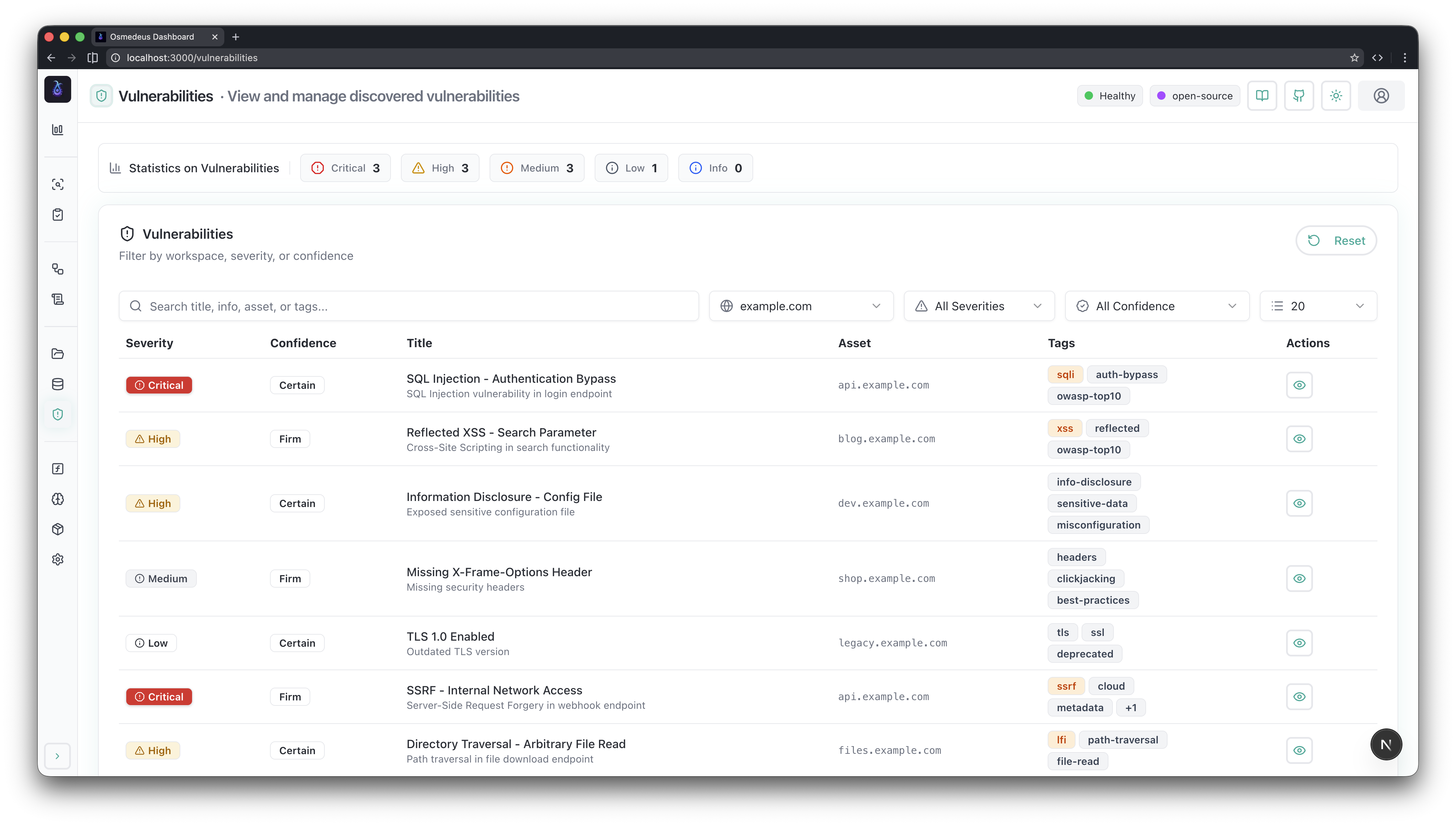
Vulnerabilities in light mode
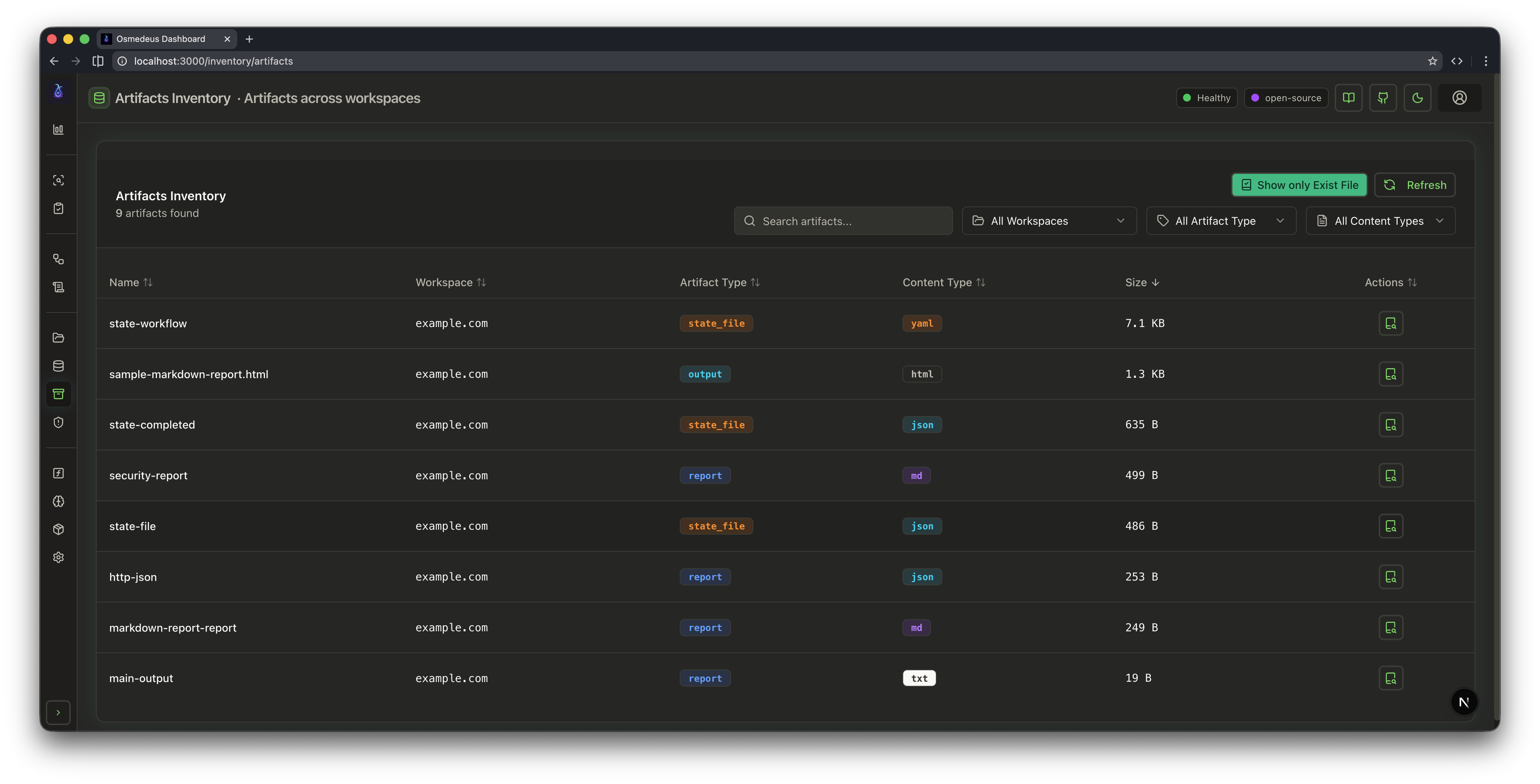
List of Artifacts
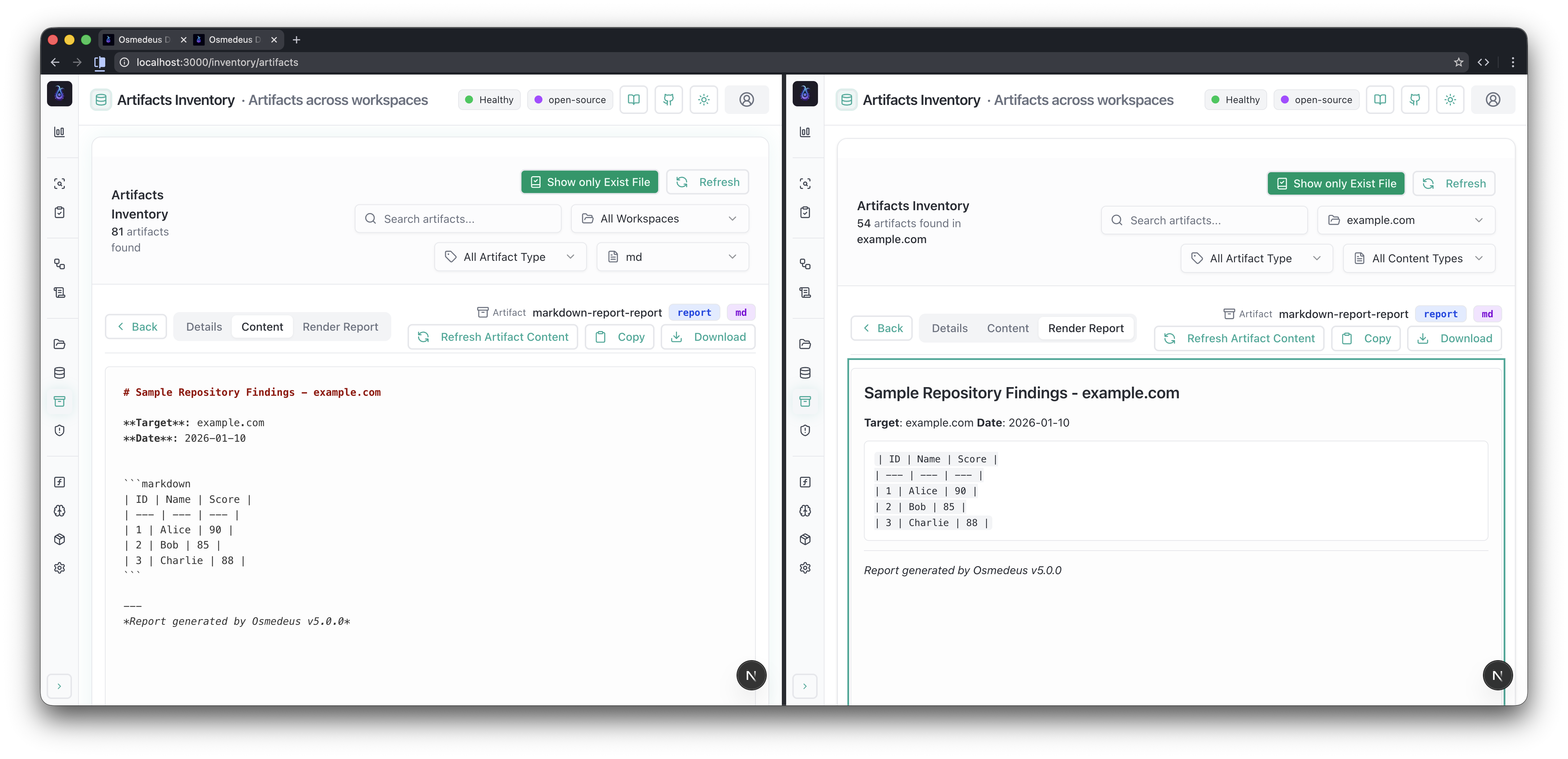
Artifact Details
2. Start New Scan (Simple Run & Scheduled)
This is where you can start a new scan by selecting the workflow and the target asset with all the extra parameters and scheduling options.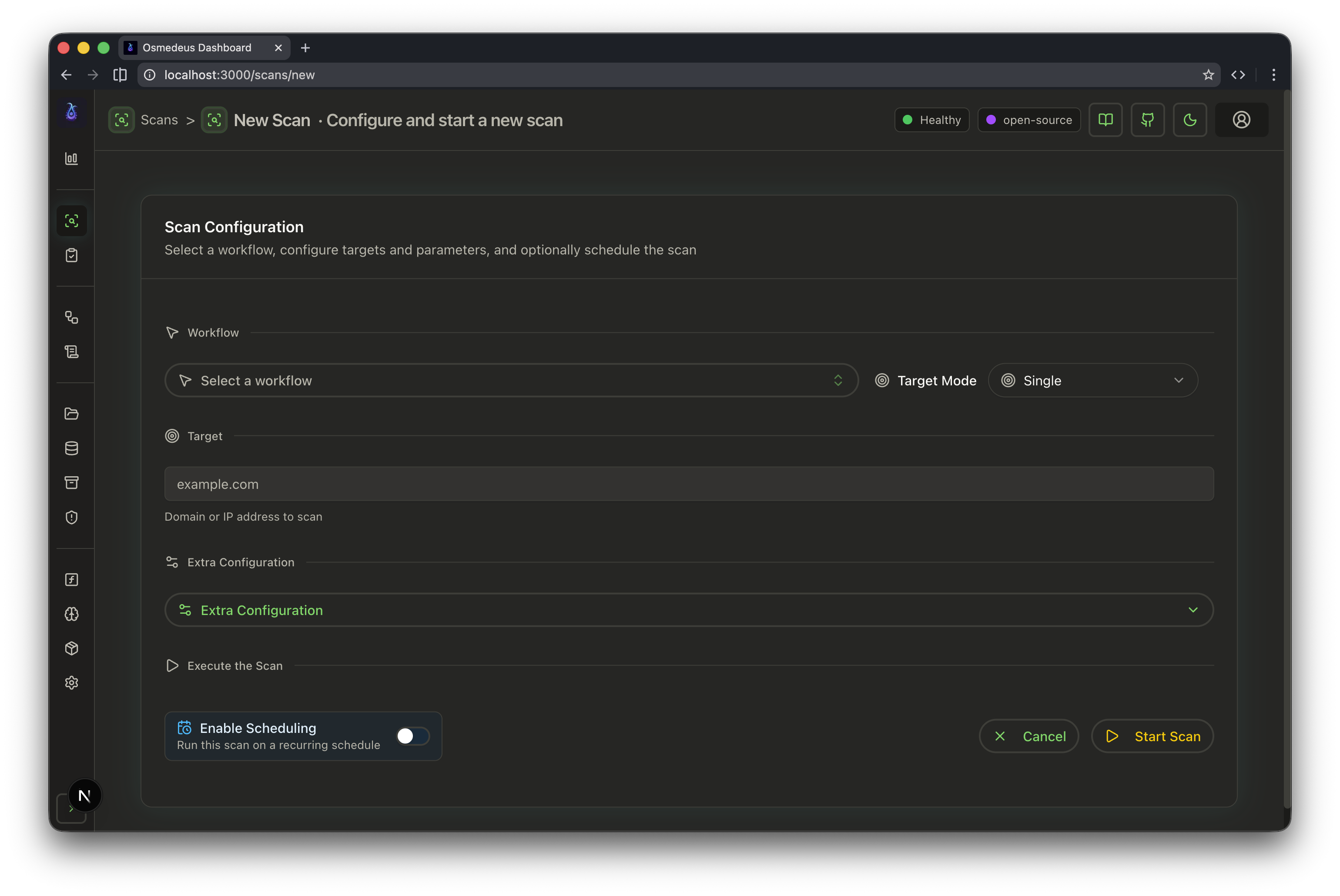
New Scan and Schedule Scan
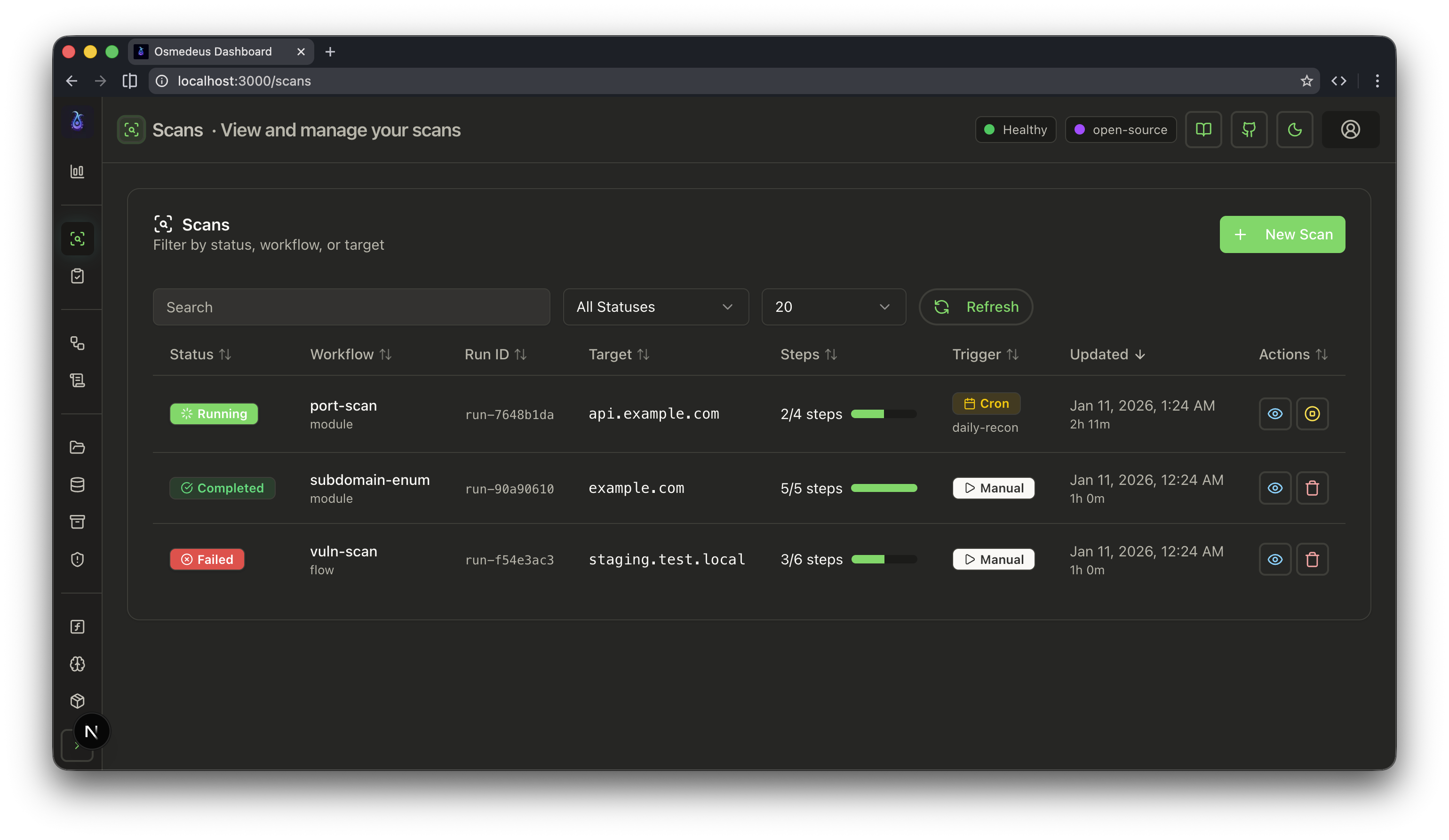
List of Scans
3. Settings, Install Registry
This is where you can configure the settings and install the registry for Osmedeus.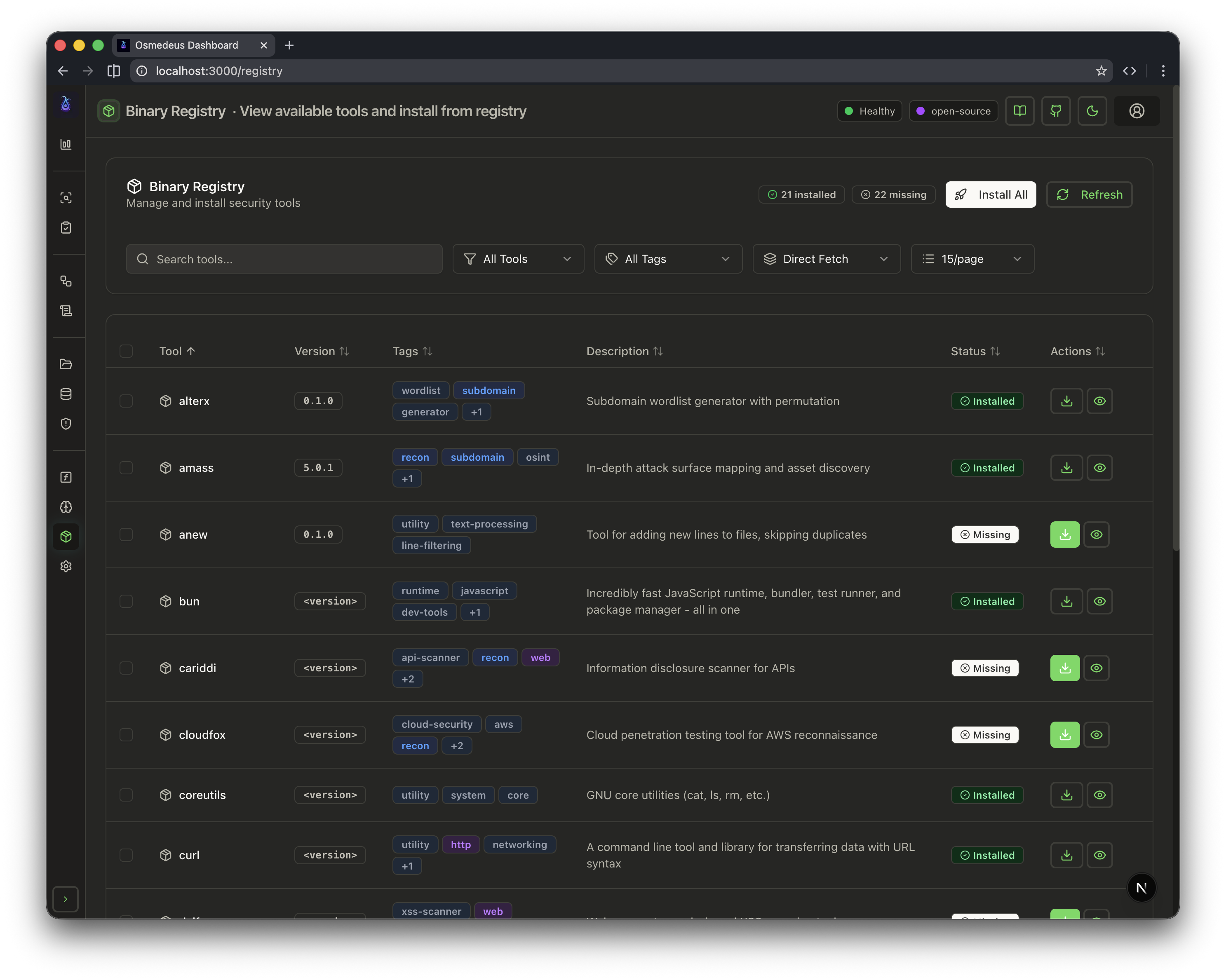
Web UI Install Registry
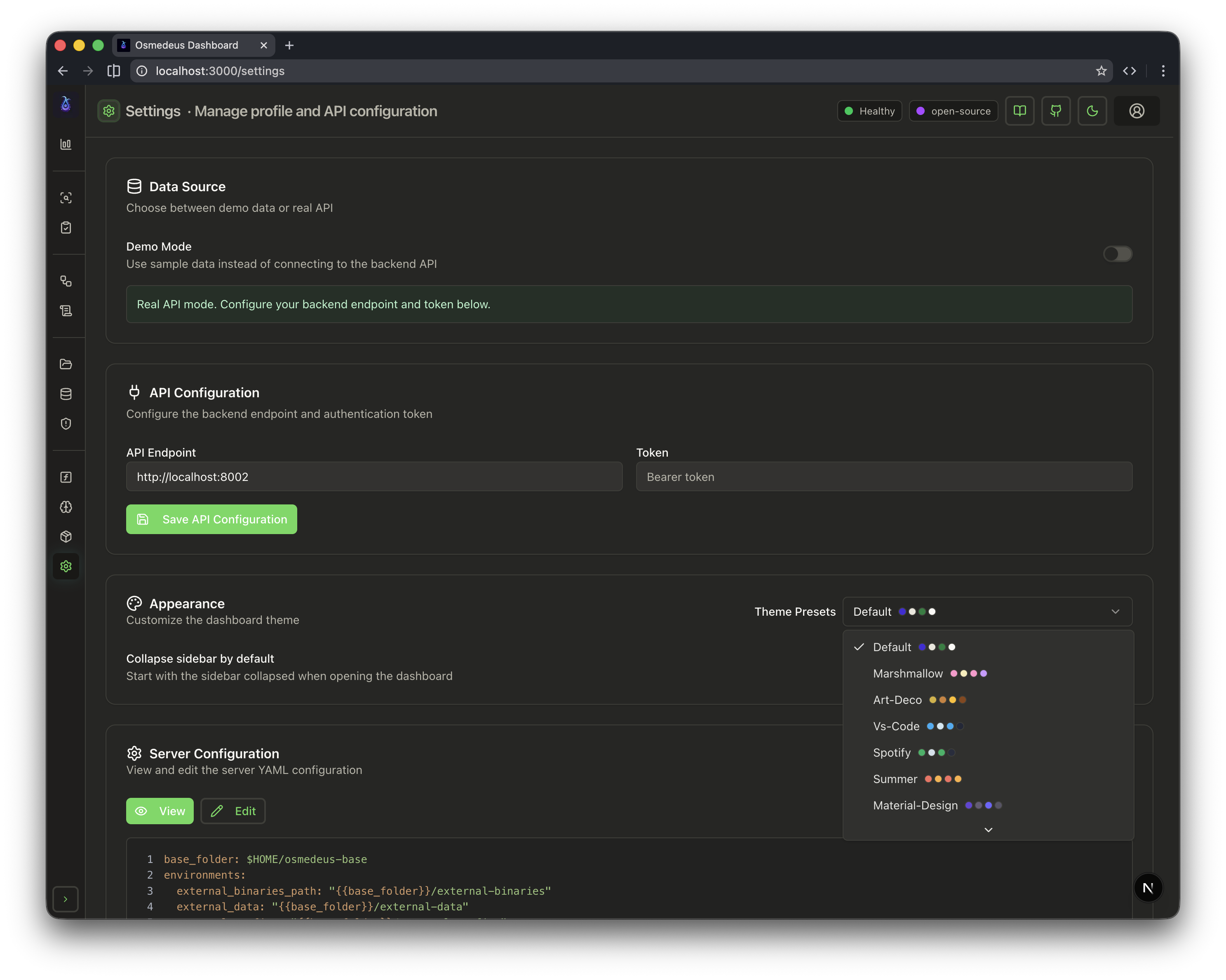
Web UI Settings
4. Utilities Functions & Scheduling
This is where you can schedule the workflows to run at specific times or intervals, and also use the LLM chat to get help with your workflows.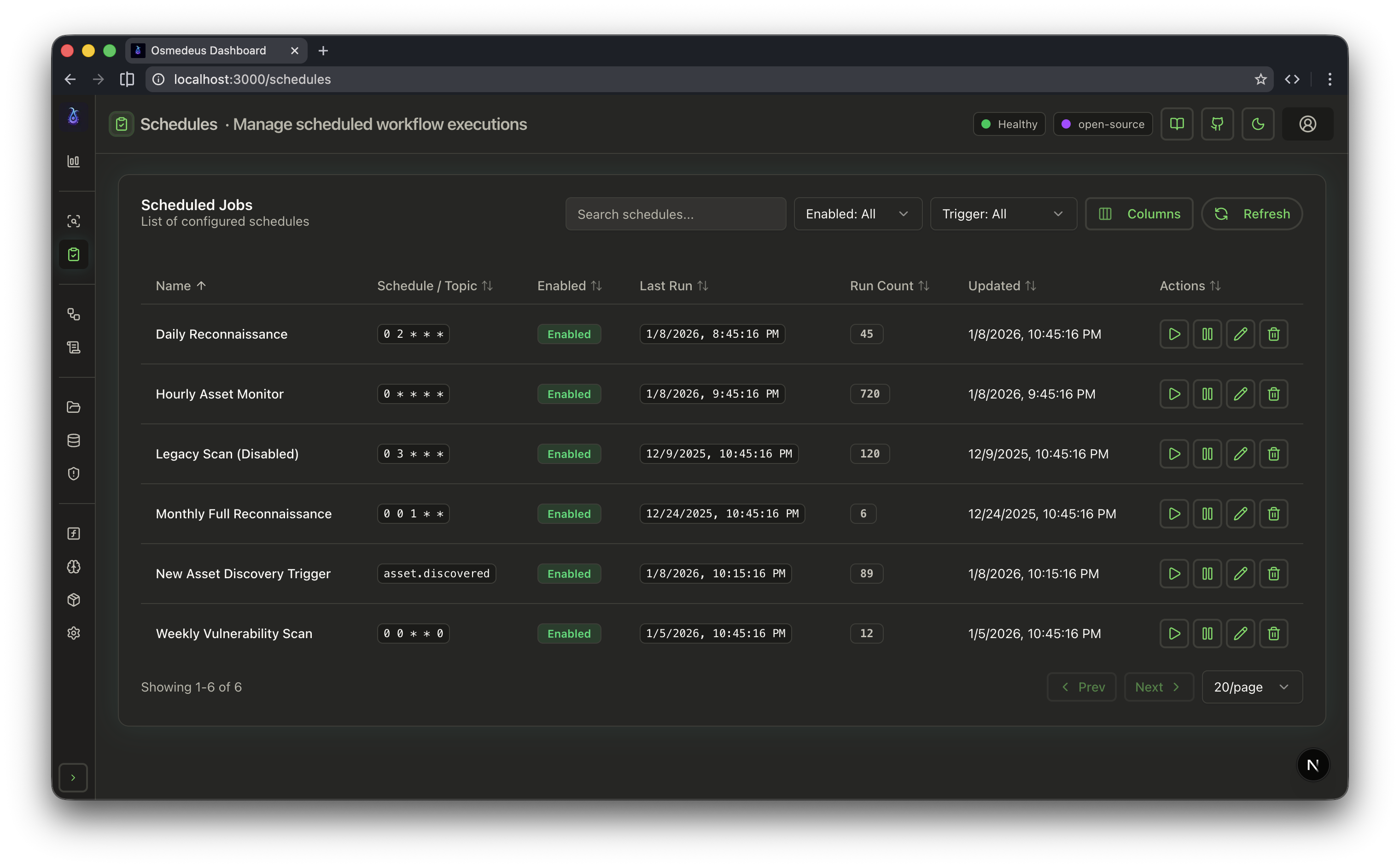
Schedule
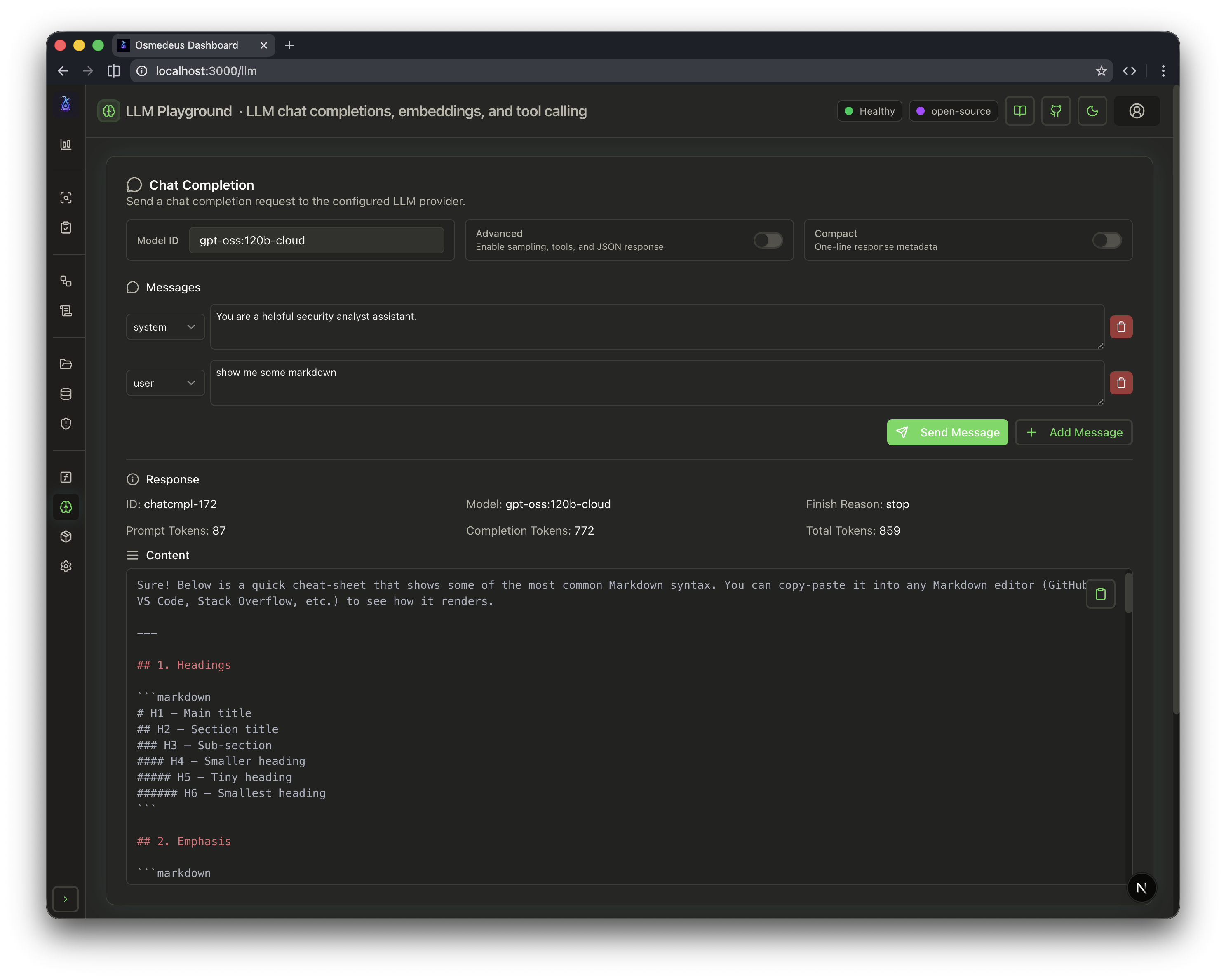
LLM Chat
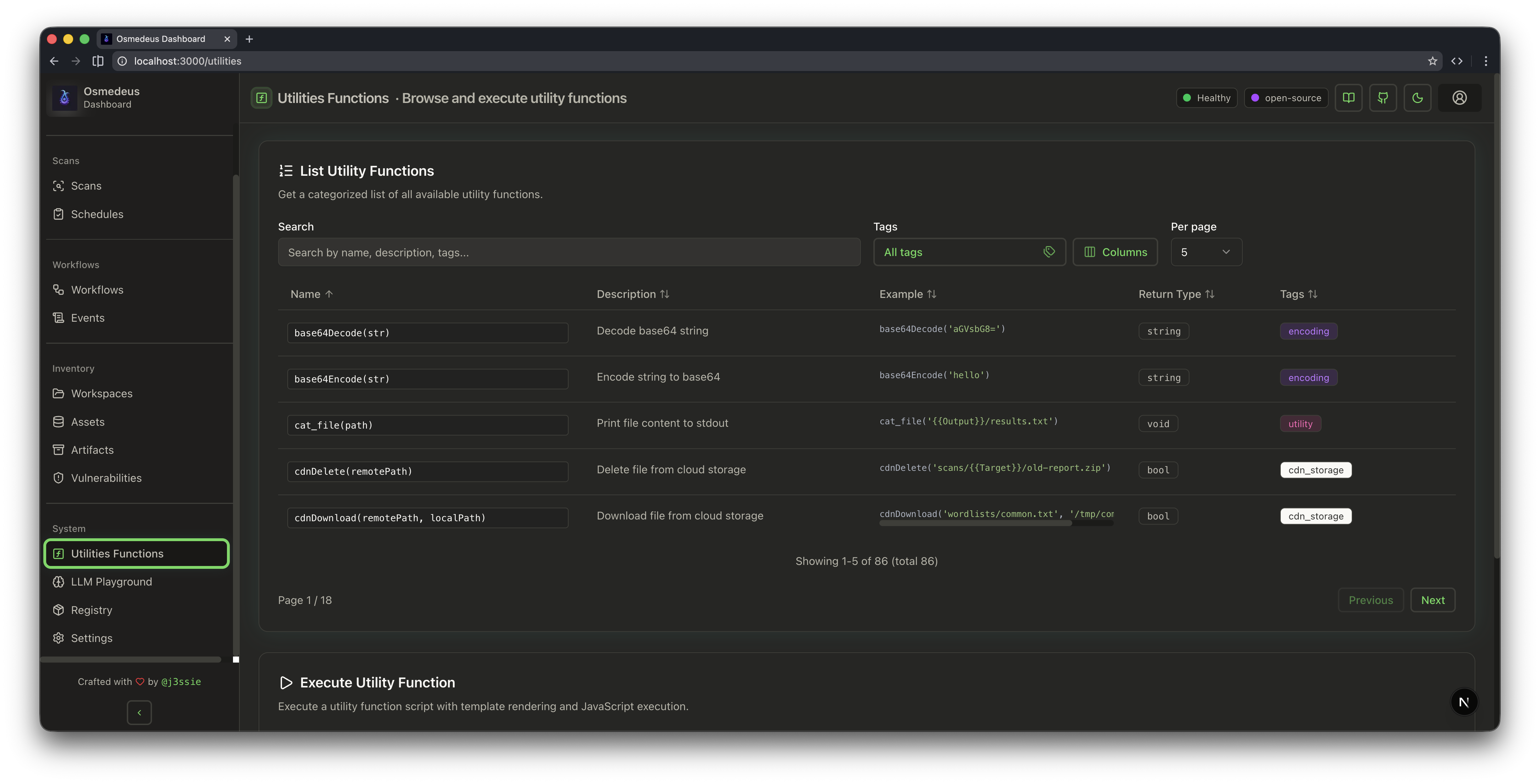
Utility Functions
Workflow Visualization and Editor
Visualization and editor for workflows in the web UI through the beautifl representation of the workflow via xyflow.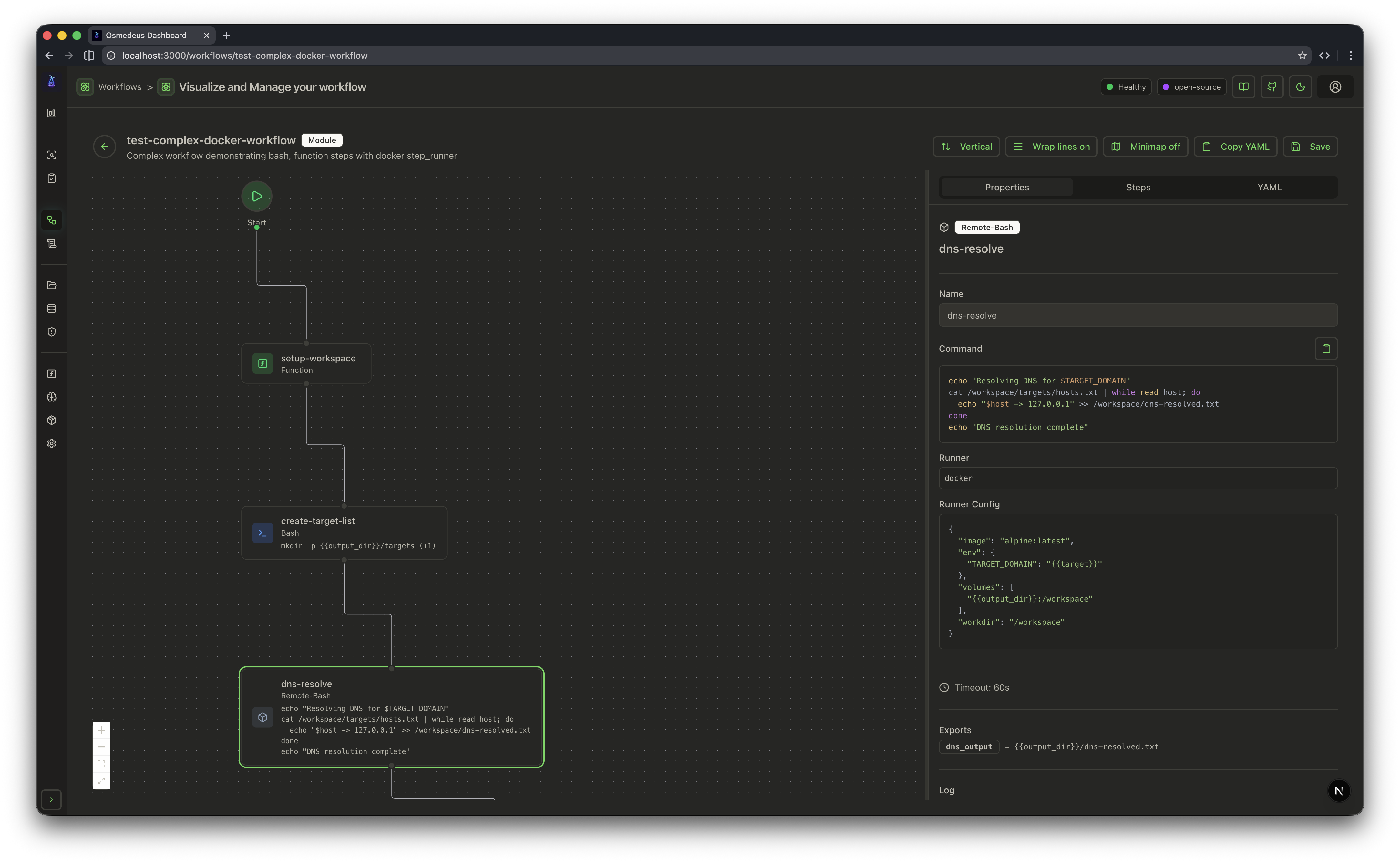
Web UI Workflow 1
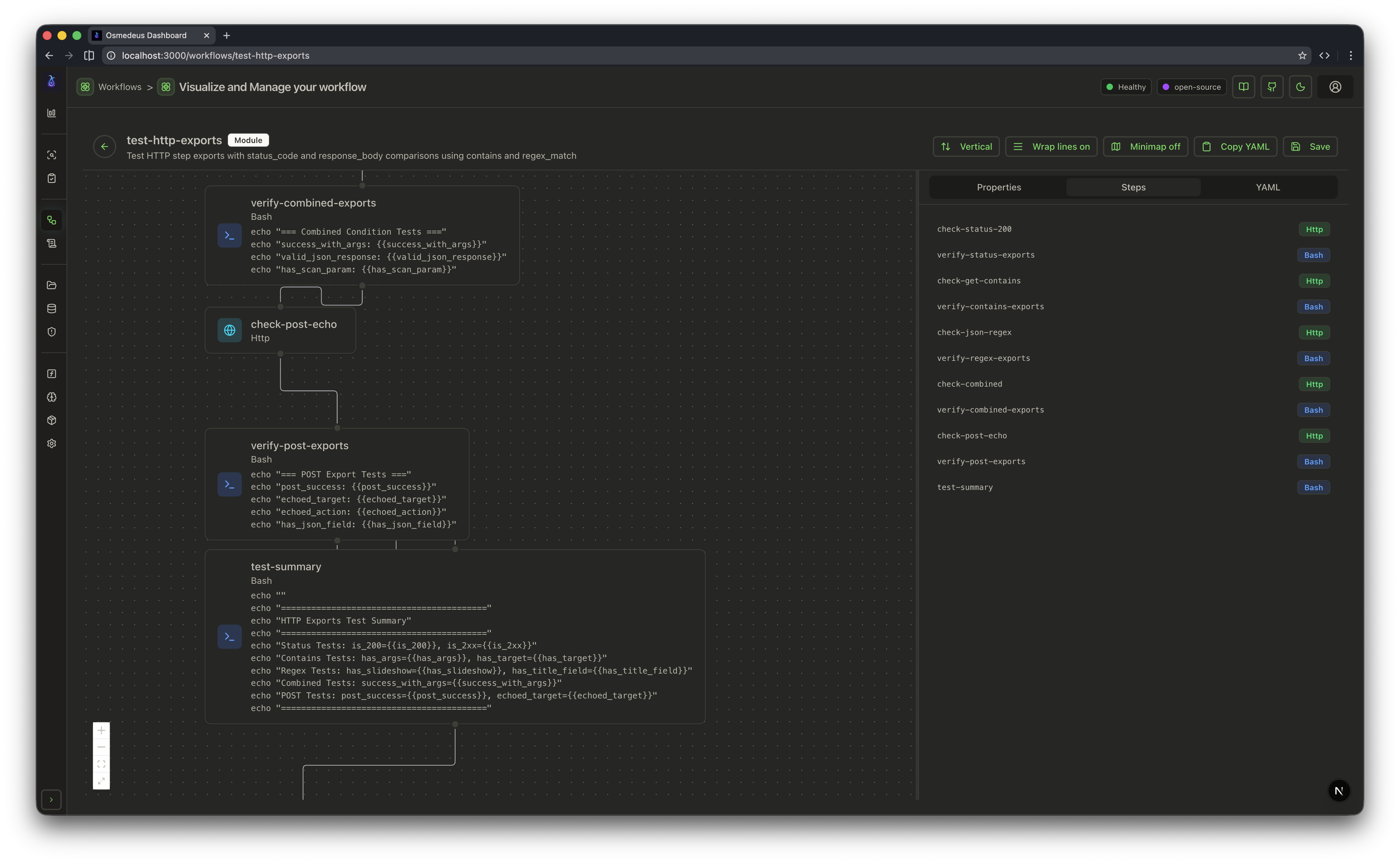
Web UI Workflow 2
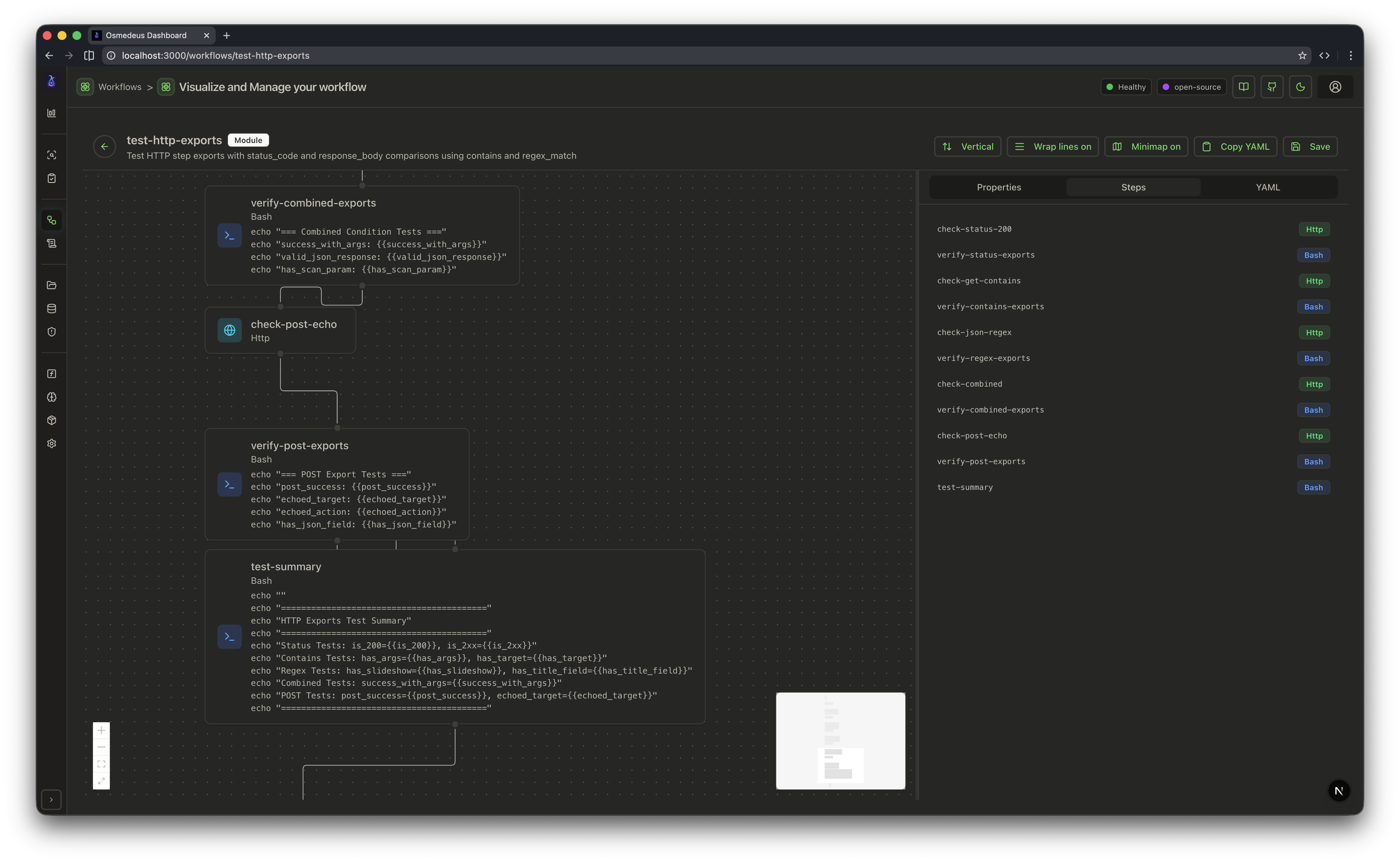
Web UI Workflow 3
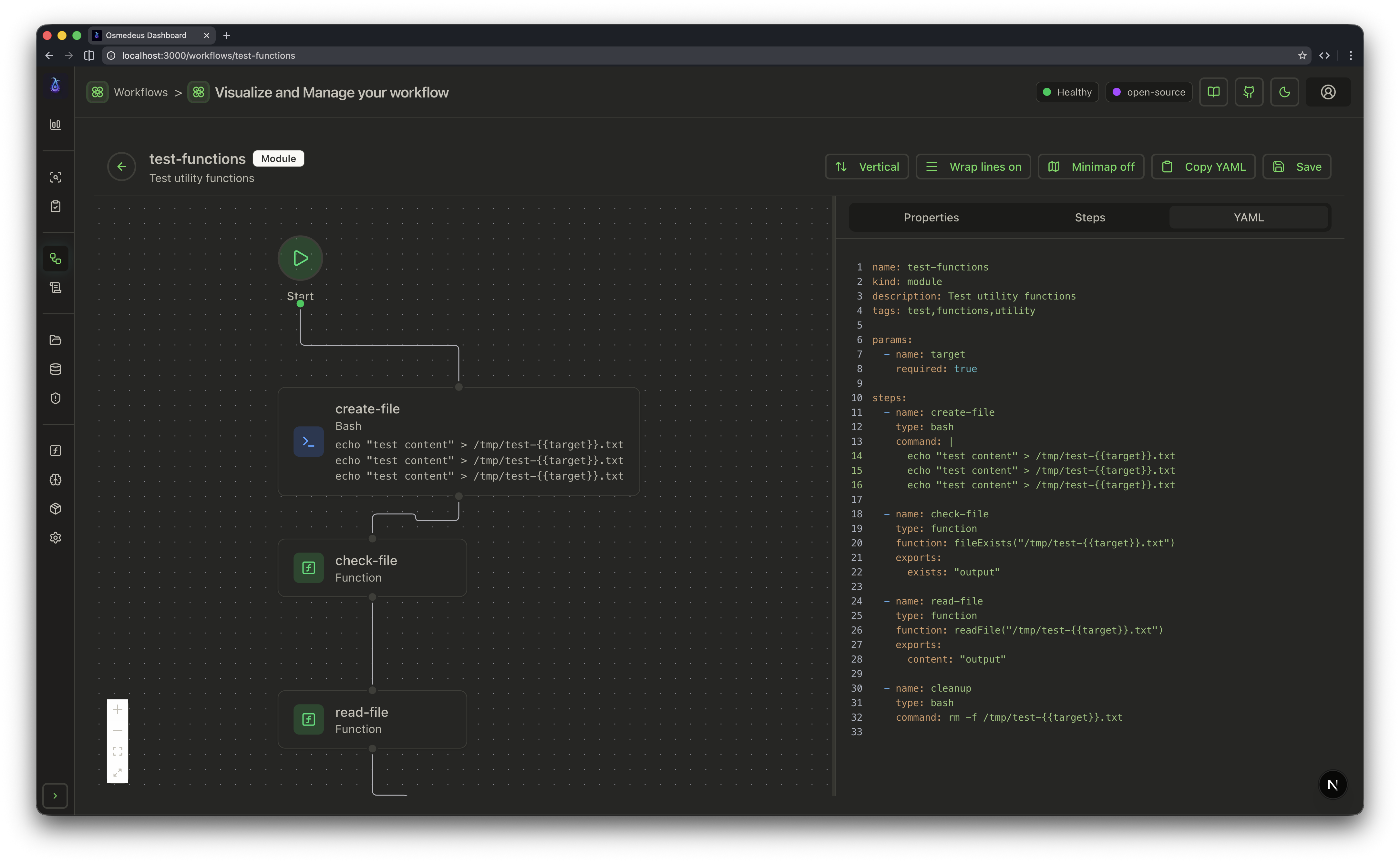
Web UI Workflow 4
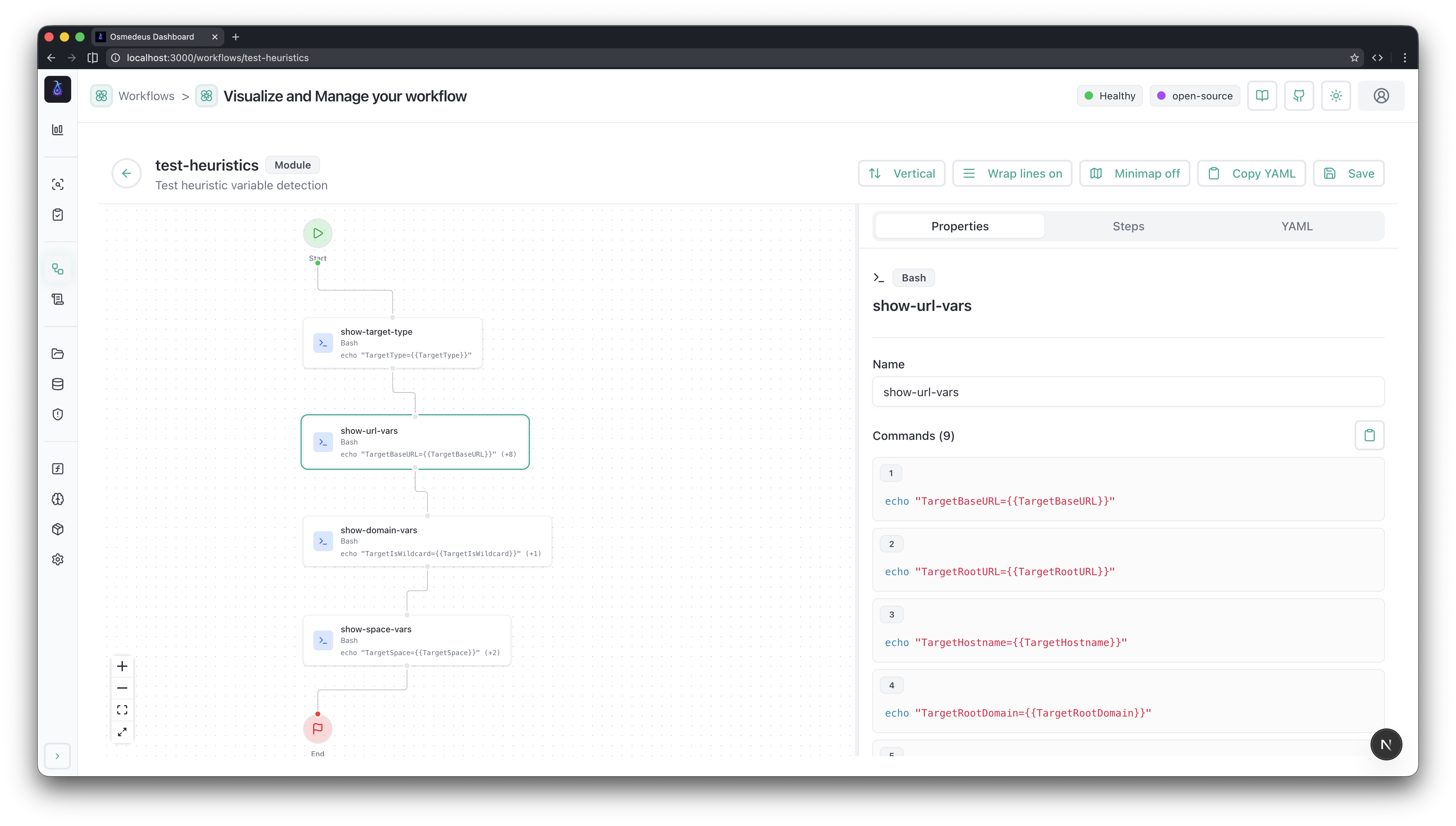
Web UI Workflow In Light mode
Communication with Web UI
Once you have logged in, you can use the web UI to run workflows, view the results, and manage your Osmedeus installation.Request