> ## Documentation Index
> Fetch the complete documentation index at: https://docs.osmedeus.org/llms.txt
> Use this file to discover all available pages before exploring further.
# Quickstart
> Get up and running with Osmedeus in 5 minutes
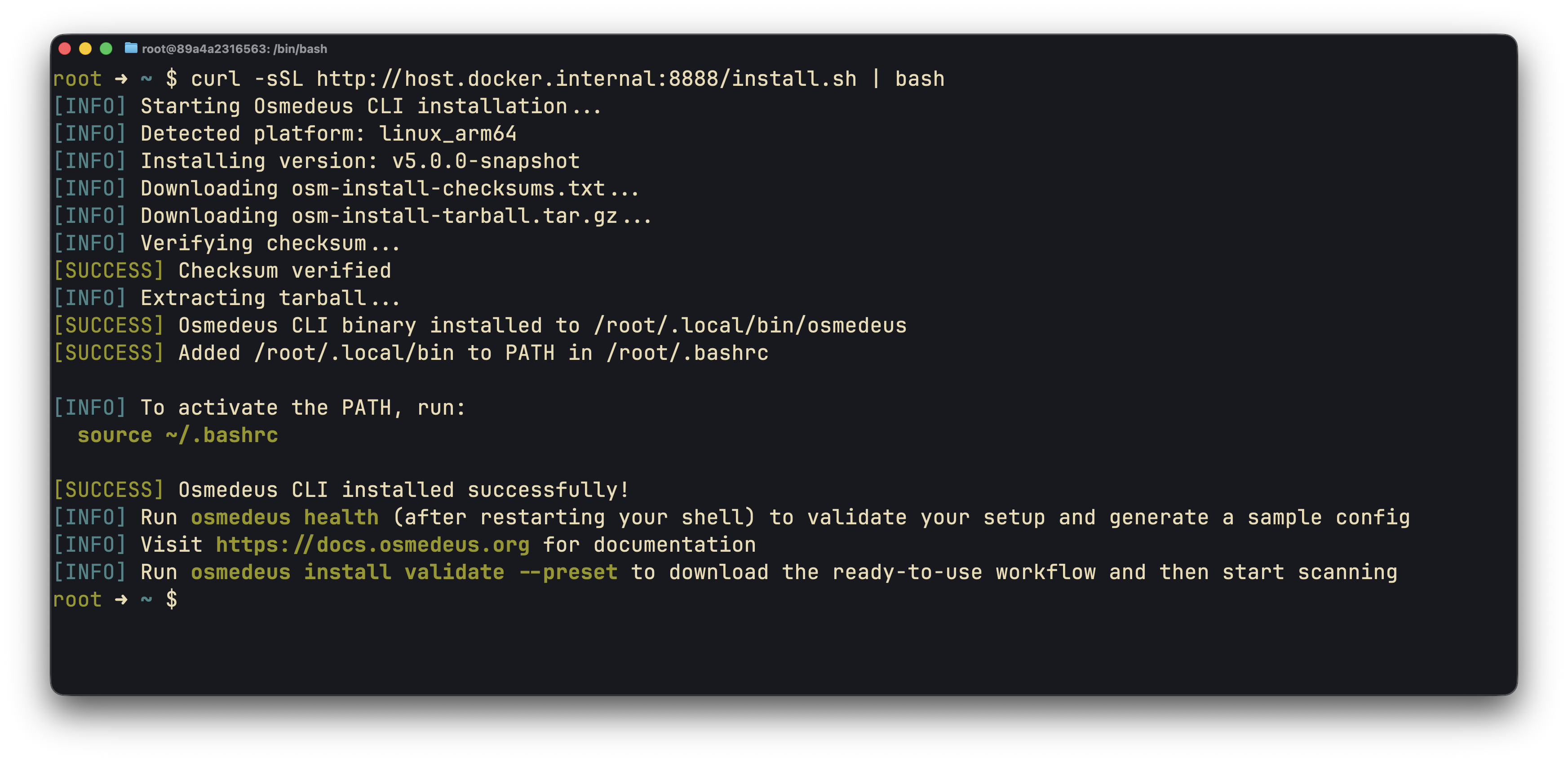
## Step 1: Install the latest version of Osmedeus
```bash theme={null}
curl -fsSL https://www.osmedeus.org/install.sh | bash
```
```bash theme={null}
brew install osmedeus/tap/osmedeus
```
```bash theme={null}
curl -fsSL https://www.osmedeus.org/nightly-install.sh | bash
```
```bash theme={null}
git clone https://github.com/osmedeus/osmedeus.git
cd osmedeus
make build
```
Osmedeus only supports Linux and macOS natively. Windows users please use WSL or See [Docker Setup here](/getting-started/docker-setup)
 ## Step 2: Install the default workflows
```bash theme={null}
osmedeus install base --preset
```
```bash theme={null}
osmedeus install workflow https://github.com/osmedeus/osmedeus-workflow.git
```
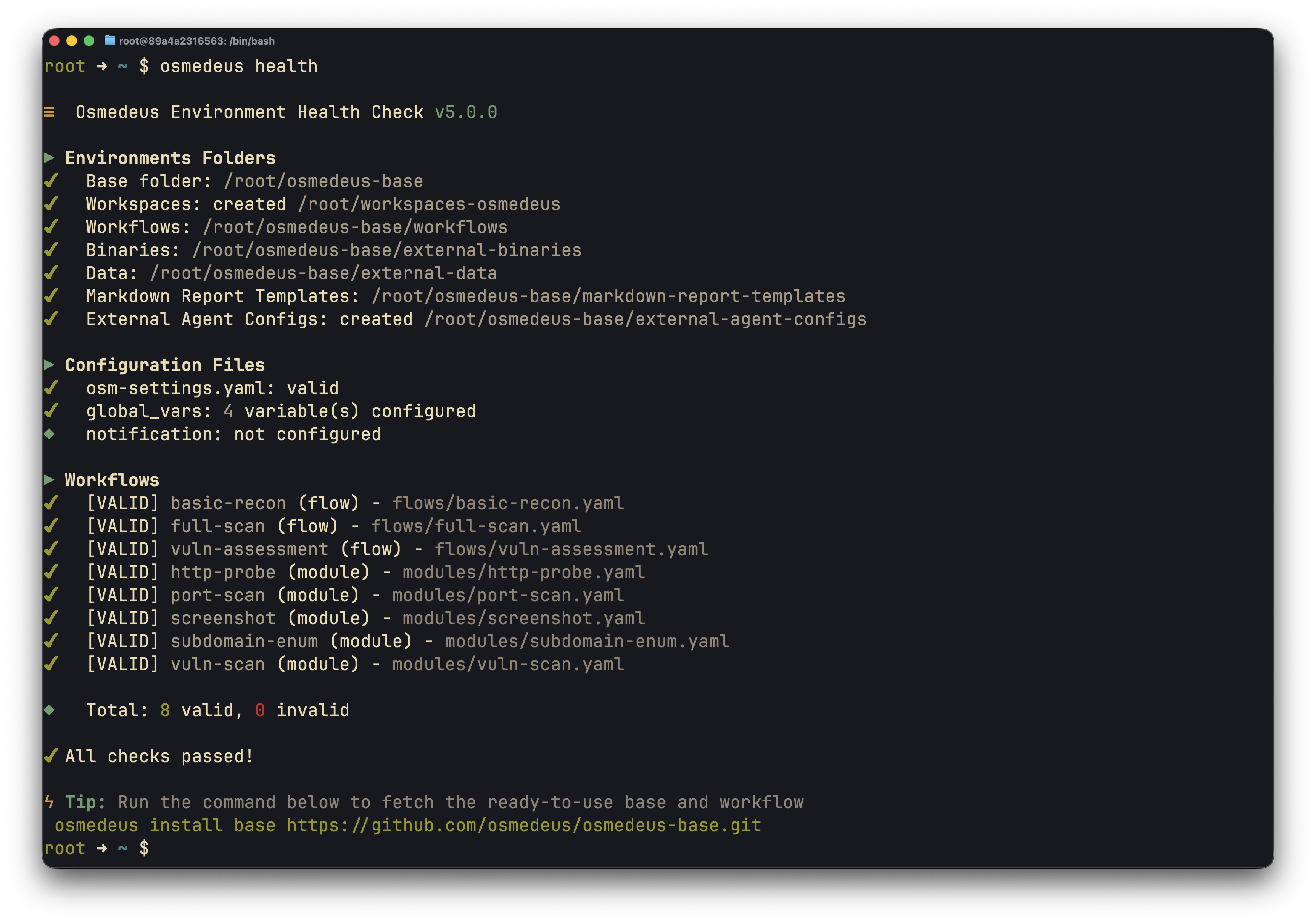
## Step 3: Validate the installation
```bash theme={null}
osmedeus health
```
Check out the [FAQs and Common Errors](/others/faq) if you encounter any issues during the installation.
## Step 2: Install the default workflows
```bash theme={null}
osmedeus install base --preset
```
```bash theme={null}
osmedeus install workflow https://github.com/osmedeus/osmedeus-workflow.git
```
## Step 3: Validate the installation
```bash theme={null}
osmedeus health
```
Check out the [FAQs and Common Errors](/others/faq) if you encounter any issues during the installation.
 ## Step 4: Run your first workflow
```bash theme={null}
osmedeus run -m subdomain -t example.com
```
## Step 4: Run your first workflow
```bash theme={null}
osmedeus run -m subdomain -t example.com
```