> ## Documentation Index
> Fetch the complete documentation index at: https://docs.osmedeus.org/llms.txt
> Use this file to discover all available pages before exploring further.
# CLI Interface
> Command-line interface for Osmedeus
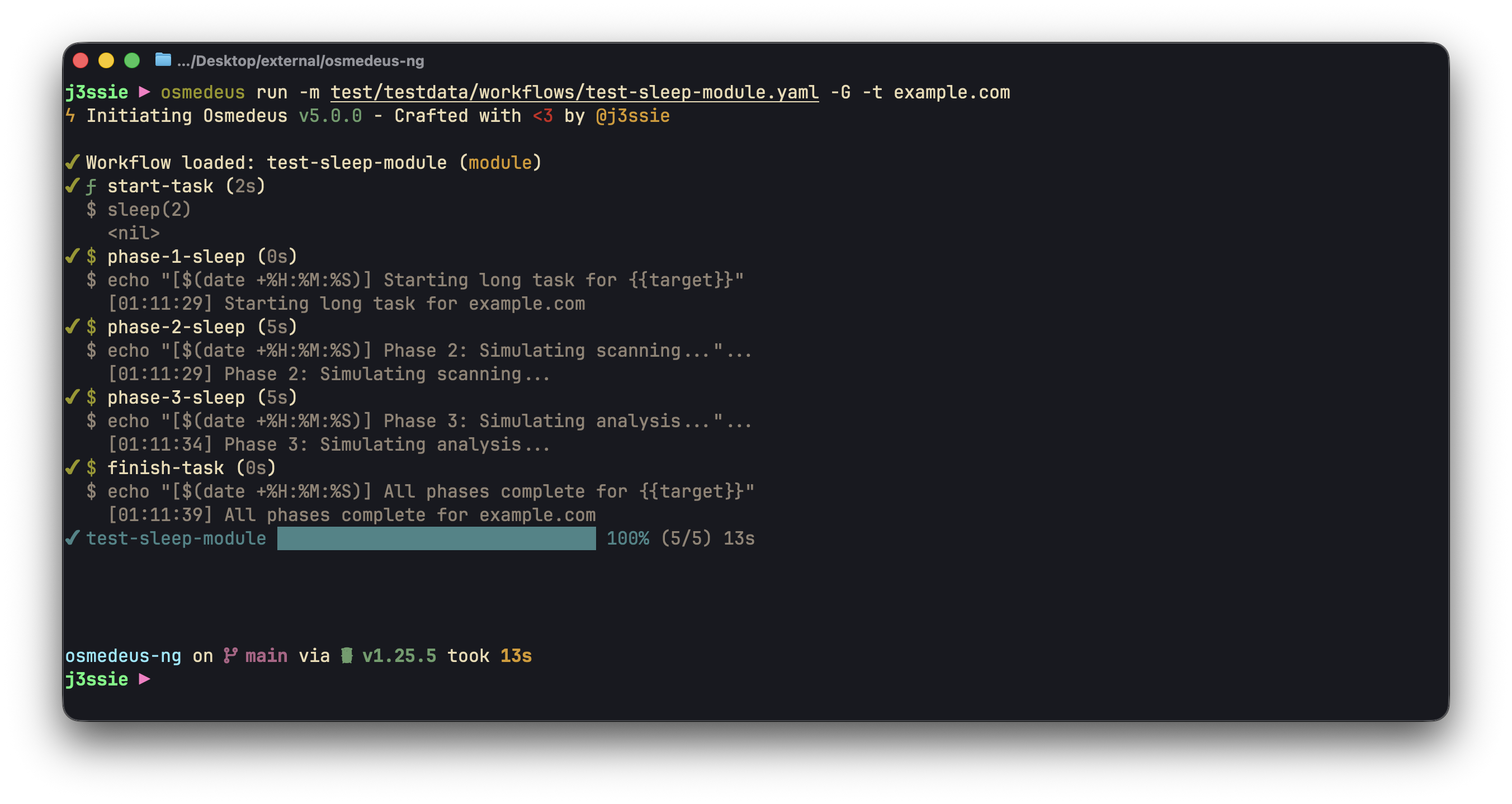 This document describes the command-line interface (CLI) for Osmedeus which is the main entry point for running workflows and modules and some other utilities.
It provides usage examples and explanations for each command. Below are all available commands:
```bash theme={null}
j3ssie ▶ osmedeus -h
Usage:
osmedeus [flags]
osmedeus [command]
Available Commands:
agent Run an ACP agent interactively
assets Query and list discovered assets
client Interact with a remote osmedeus server
cloud Cloud infrastructure management commands
completion Generate the autocompletion script for the specified shell
config Manage osmedeus configuration
db Database management commands
eval Evaluate a script (shorthand for 'func eval')
function Execute and test utility functions
health Check and fix environment health (alias for 'osmedeus install validate')
help Help about any command
install Install workflows, base folder, or binaries
run Execute a workflow
scan Execute a workflow (alias for 'run')
serve Start the Osmedeus web server
snapshot Export and import workspace snapshots
uninstall Remove Osmedeus installation (base folder, workspaces, and binary)
update Update osmedeus to the latest version
version Print version information
worker Worker node commands for distributed scanning
workflow Manage workflows
```
## 1. Osmedeus Run (aliases: scan)
Execute a workflow against one or more targets
This document describes the command-line interface (CLI) for Osmedeus which is the main entry point for running workflows and modules and some other utilities.
It provides usage examples and explanations for each command. Below are all available commands:
```bash theme={null}
j3ssie ▶ osmedeus -h
Usage:
osmedeus [flags]
osmedeus [command]
Available Commands:
agent Run an ACP agent interactively
assets Query and list discovered assets
client Interact with a remote osmedeus server
cloud Cloud infrastructure management commands
completion Generate the autocompletion script for the specified shell
config Manage osmedeus configuration
db Database management commands
eval Evaluate a script (shorthand for 'func eval')
function Execute and test utility functions
health Check and fix environment health (alias for 'osmedeus install validate')
help Help about any command
install Install workflows, base folder, or binaries
run Execute a workflow
scan Execute a workflow (alias for 'run')
serve Start the Osmedeus web server
snapshot Export and import workspace snapshots
uninstall Remove Osmedeus installation (base folder, workspaces, and binary)
update Update osmedeus to the latest version
version Print version information
worker Worker node commands for distributed scanning
workflow Manage workflows
```
## 1. Osmedeus Run (aliases: scan)
Execute a workflow against one or more targets
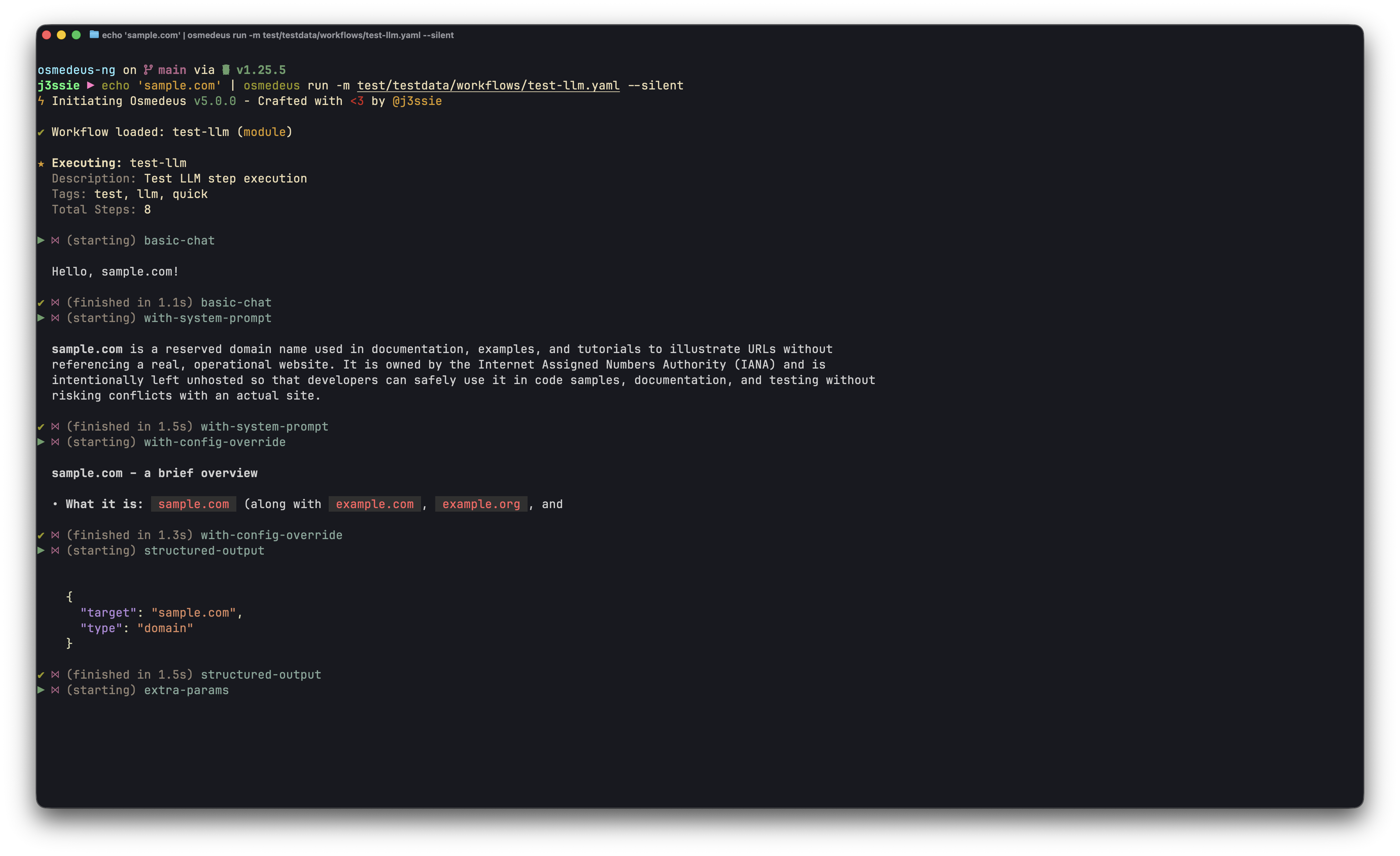
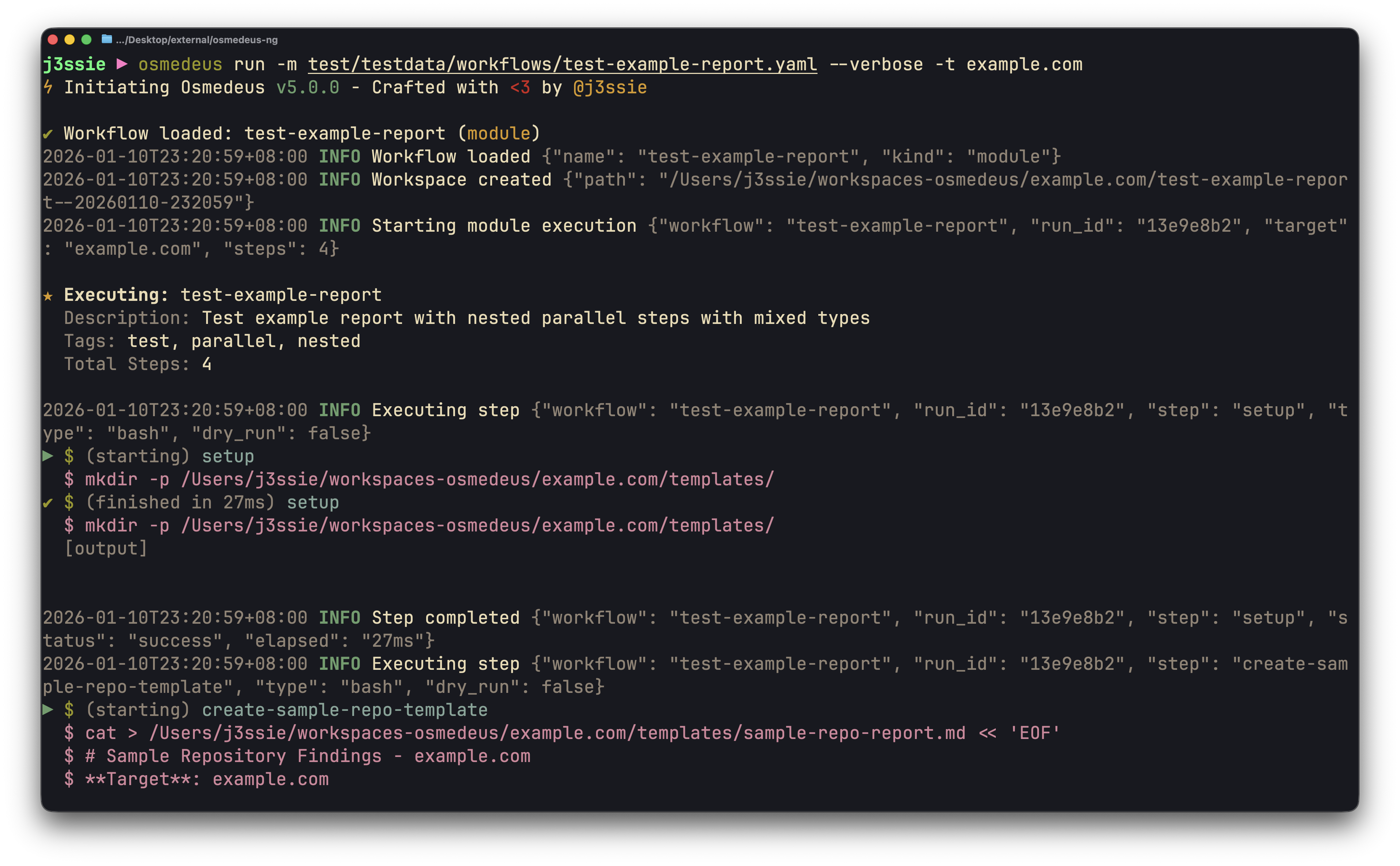
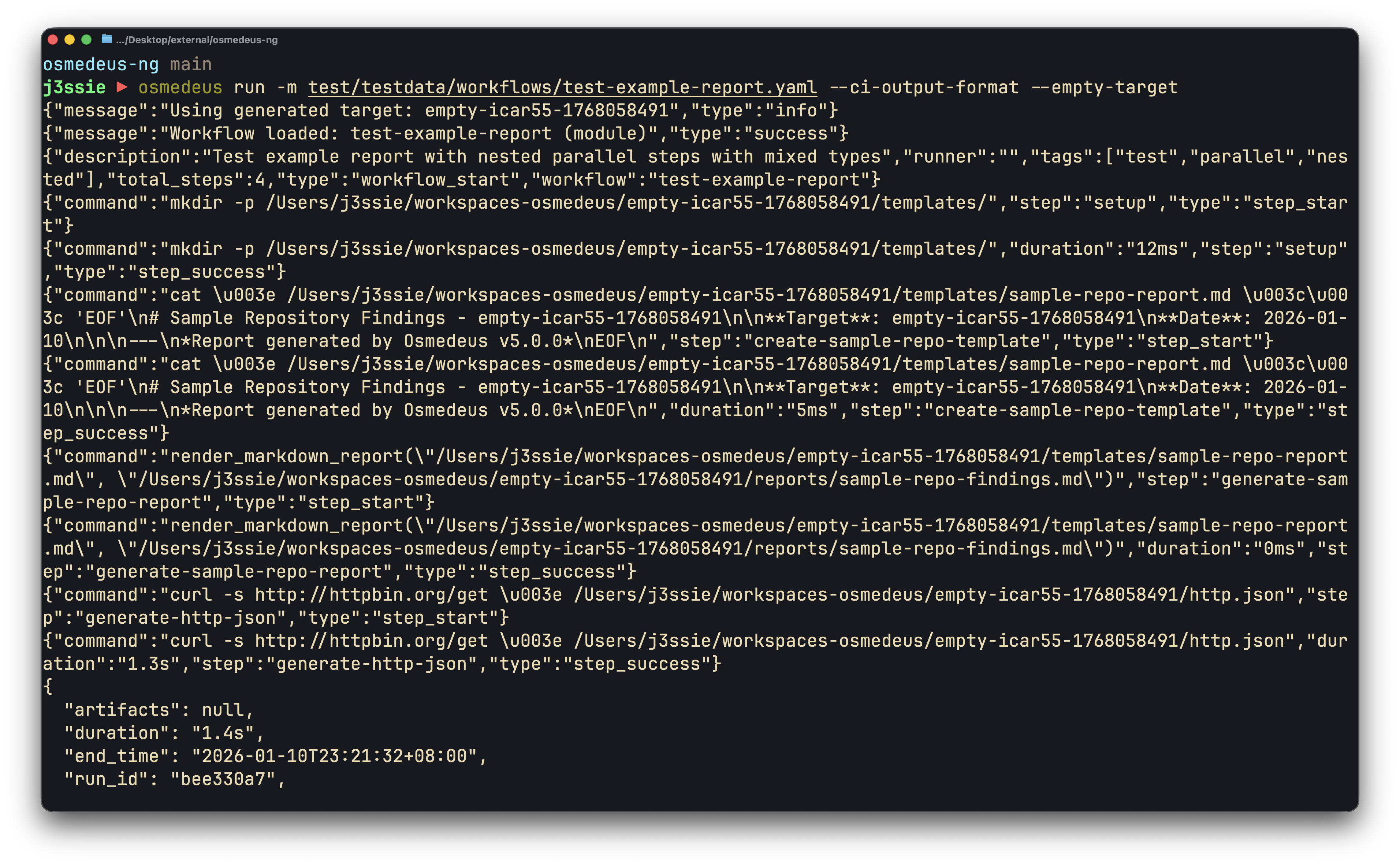 ```bash theme={null}
▷ Examples
# Run against a single target
osmedeus run -f recon-workflow -t example.com
# Run against multiple targets
osmedeus run -m simple-module -t target1.com -t target2.com
# Run with stdin input with concurrency
cat list-of-urls.txt | osmedeus run -m simple-module --concurrency 10
# Combine multiple input methods
echo "extra.com" | osmedeus run -m simple-module -t main.com -T more-targets.txt
# Run with custom parameters
osmedeus run -m simple-module -t example.com --params 'threads=20'
# Run with custom base folder
osmedeus run --base-folder /opt/osmedeus-base -f recon-workflow -t example.com
# Run with timeout (cancel if exceeds)
osmedeus run -m recon -t example.com --timeout 2h
# Repeat run every hour continuously
osmedeus run -m recon -t example.com --repeat --repeat-wait-time 1h
# Run multiple modules in sequence
osmedeus run -m subdomain -m portscan -m vulnscan -t example.com
# Combine timeout with repeat mode
osmedeus run -m recon -t example.com --timeout 3h --repeat --repeat-wait-time 30m
# Dry-run mode (preview without executing)
osmedeus run -m recon -t example.com --dry-run
# Run module from stdin (pipe YAML)
cat module.yaml | osmedeus run --std-module -t example.com
# Load parameters from YAML/JSON file
osmedeus run -m recon -t example.com --params-file params.yaml
# Custom workspace path
osmedeus run -m recon -t example.com --workspace /custom/workspace
# Skip heuristics checks
osmedeus run -m recon -t example.com --heuristics-check none
# Concurrent targets from file
osmedeus run -m recon -T targets.txt --concurrency 5
▷ Module from URL
# Run module from URL
osmedeus run --module-url https://example.com/module.yaml -t example.com
# Run module from GitHub (public)
osmedeus run --module-url https://raw.githubusercontent.com/user/repo/main/module.yaml -t example.com
# Run module from private GitHub repo (requires GH_TOKEN or GITHUB_API_KEY)
osmedeus run --module-url https://github.com/user/private-repo/blob/main/module.yaml -t example.com
▷ Chunk Mode (split large target files across machines)
# View chunk info for target file
osmedeus run -m recon -T targets.txt --chunk-size 100
# Run specific chunk (0-indexed)
osmedeus run -m recon -T targets.txt --chunk-size 100 --chunk-part 2
# Split into 4 equal chunks and run chunk 0
osmedeus run -m recon -T targets.txt --chunk-count 4 --chunk-part 0
# Distributed processing across machines
osmedeus run -m recon -T targets.txt --chunk-size 250 --chunk-part 0 # Machine 1
osmedeus run -m recon -T targets.txt --chunk-size 250 --chunk-part 1 # Machine 2
▷ Queue Mode (defer execution for later processing)
# Queue a run for later processing
osmedeus run --queue -m recon -t example.com
# Queue with file target
osmedeus run --queue -m recon -T targets.txt
# Process queued tasks (alias for 'osmedeus worker queue run')
osmedeus run --queue-run
# Process queued tasks with concurrency
osmedeus run --queue-run --concurrency 3
▷ Module Exclusion
# Exclude specific module(s) from a flow (exact match, repeatable)
osmedeus run -f general -t example.com -x subdomain-enum
# Exclude multiple modules
osmedeus run -f general -t example.com -x subdomain-enum -x portscan
# Fuzzy-exclude modules whose name contains a substring
osmedeus run -f general -t example.com -X vuln
# Combine exact and fuzzy exclusion
osmedeus run -f general -t example.com -x portscan -X brute
▷ Webhook Mode (register a trigger instead of running immediately)
# Register a webhook trigger for a module
osmedeus run --as-webhook -m recon -t example.com
# Register with an authentication key
osmedeus run --as-webhook -m recon -t example.com --webhook-auth-key my-secret-key
# Register a flow webhook
osmedeus run --as-webhook -f general -t example.com --webhook-auth-key my-secret-key
▷ Cron Schedule Mode (create a recurring schedule instead of running immediately)
# Create a cron schedule (daily at 2 AM)
osmedeus run --as-cron '0 2 * * *' -m recon -t example.com
# Schedule a flow to run every 6 hours
osmedeus run --as-cron '0 */6 * * *' -f general -t example.com
# Schedule for multiple targets (weekly on Monday)
osmedeus run --as-cron '0 0 * * 1' -m recon -T targets.txt
```
## 2. Osmedeus Function Eval
Execute and test utility functions available in workflows
```bash theme={null}
▷ Examples
# Run against a single target
osmedeus run -f recon-workflow -t example.com
# Run against multiple targets
osmedeus run -m simple-module -t target1.com -t target2.com
# Run with stdin input with concurrency
cat list-of-urls.txt | osmedeus run -m simple-module --concurrency 10
# Combine multiple input methods
echo "extra.com" | osmedeus run -m simple-module -t main.com -T more-targets.txt
# Run with custom parameters
osmedeus run -m simple-module -t example.com --params 'threads=20'
# Run with custom base folder
osmedeus run --base-folder /opt/osmedeus-base -f recon-workflow -t example.com
# Run with timeout (cancel if exceeds)
osmedeus run -m recon -t example.com --timeout 2h
# Repeat run every hour continuously
osmedeus run -m recon -t example.com --repeat --repeat-wait-time 1h
# Run multiple modules in sequence
osmedeus run -m subdomain -m portscan -m vulnscan -t example.com
# Combine timeout with repeat mode
osmedeus run -m recon -t example.com --timeout 3h --repeat --repeat-wait-time 30m
# Dry-run mode (preview without executing)
osmedeus run -m recon -t example.com --dry-run
# Run module from stdin (pipe YAML)
cat module.yaml | osmedeus run --std-module -t example.com
# Load parameters from YAML/JSON file
osmedeus run -m recon -t example.com --params-file params.yaml
# Custom workspace path
osmedeus run -m recon -t example.com --workspace /custom/workspace
# Skip heuristics checks
osmedeus run -m recon -t example.com --heuristics-check none
# Concurrent targets from file
osmedeus run -m recon -T targets.txt --concurrency 5
▷ Module from URL
# Run module from URL
osmedeus run --module-url https://example.com/module.yaml -t example.com
# Run module from GitHub (public)
osmedeus run --module-url https://raw.githubusercontent.com/user/repo/main/module.yaml -t example.com
# Run module from private GitHub repo (requires GH_TOKEN or GITHUB_API_KEY)
osmedeus run --module-url https://github.com/user/private-repo/blob/main/module.yaml -t example.com
▷ Chunk Mode (split large target files across machines)
# View chunk info for target file
osmedeus run -m recon -T targets.txt --chunk-size 100
# Run specific chunk (0-indexed)
osmedeus run -m recon -T targets.txt --chunk-size 100 --chunk-part 2
# Split into 4 equal chunks and run chunk 0
osmedeus run -m recon -T targets.txt --chunk-count 4 --chunk-part 0
# Distributed processing across machines
osmedeus run -m recon -T targets.txt --chunk-size 250 --chunk-part 0 # Machine 1
osmedeus run -m recon -T targets.txt --chunk-size 250 --chunk-part 1 # Machine 2
▷ Queue Mode (defer execution for later processing)
# Queue a run for later processing
osmedeus run --queue -m recon -t example.com
# Queue with file target
osmedeus run --queue -m recon -T targets.txt
# Process queued tasks (alias for 'osmedeus worker queue run')
osmedeus run --queue-run
# Process queued tasks with concurrency
osmedeus run --queue-run --concurrency 3
▷ Module Exclusion
# Exclude specific module(s) from a flow (exact match, repeatable)
osmedeus run -f general -t example.com -x subdomain-enum
# Exclude multiple modules
osmedeus run -f general -t example.com -x subdomain-enum -x portscan
# Fuzzy-exclude modules whose name contains a substring
osmedeus run -f general -t example.com -X vuln
# Combine exact and fuzzy exclusion
osmedeus run -f general -t example.com -x portscan -X brute
▷ Webhook Mode (register a trigger instead of running immediately)
# Register a webhook trigger for a module
osmedeus run --as-webhook -m recon -t example.com
# Register with an authentication key
osmedeus run --as-webhook -m recon -t example.com --webhook-auth-key my-secret-key
# Register a flow webhook
osmedeus run --as-webhook -f general -t example.com --webhook-auth-key my-secret-key
▷ Cron Schedule Mode (create a recurring schedule instead of running immediately)
# Create a cron schedule (daily at 2 AM)
osmedeus run --as-cron '0 2 * * *' -m recon -t example.com
# Schedule a flow to run every 6 hours
osmedeus run --as-cron '0 */6 * * *' -f general -t example.com
# Schedule for multiple targets (weekly on Monday)
osmedeus run --as-cron '0 0 * * 1' -m recon -T targets.txt
```
## 2. Osmedeus Function Eval
Execute and test utility functions available in workflows
 ```bash theme={null}
▶ Subcommands
• list - List all available functions
• eval (e) - Evaluate scripts with template rendering
▷ Examples
# List all available functions
osmedeus func list
# Evaluate a simple function
osmedeus func eval 'trim(" hello ")'
# Short alias for eval
osmedeus func e 'log_info("Hello World")'
# Use with target variable
osmedeus func e 'fileExists("{{target}}")' -t /tmp/test.txt
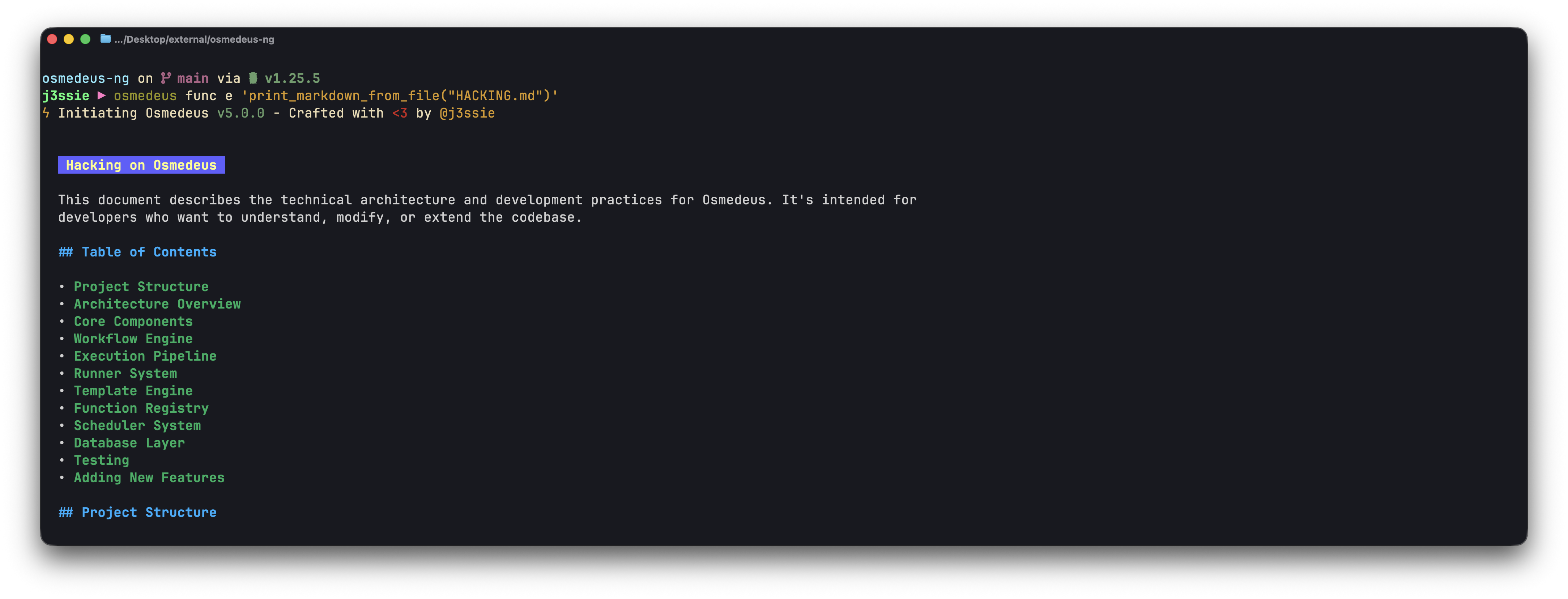
# Print markdown file with syntax highlighting
osmedeus func e 'print_markdown_from_file("README.md")'
# Multi-line script with variable
osmedeus func e 'var x = trim(" test "); log_info(x); x'
# Make HTTP request
osmedeus func e 'httpRequest("https://api.example.com", "GET", {}, "")'
# With custom params
osmedeus func e 'log_info("{{host}}:{{port}}")' --params 'host=localhost' --params 'port=8080'
# Use -f flag for shell path autocompletion on file arguments
osmedeus func e -f trim " hello world "
osmedeus func e -f fileExists /tmp
osmedeus func e -t example.com -f log_info "Processing {{target}}"
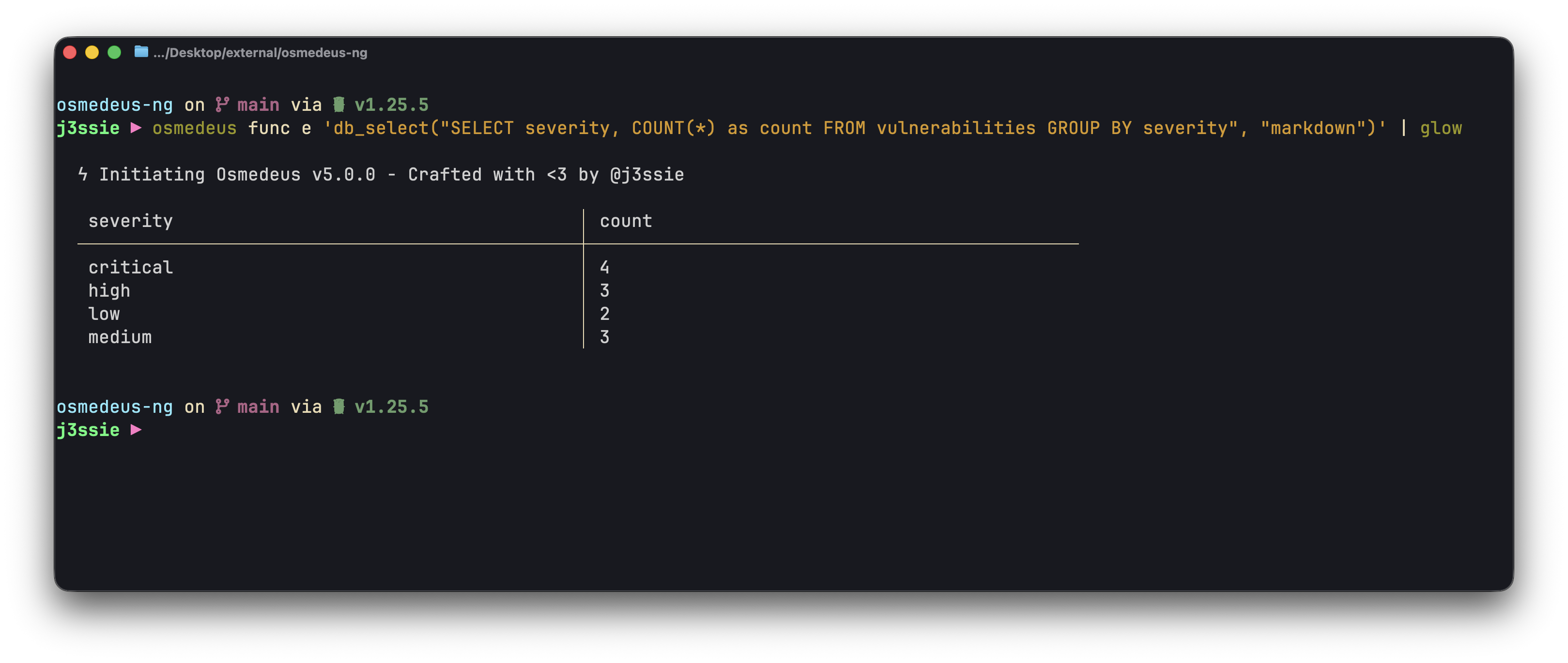
# Query database with SQL
osmedeus func e 'db_select("SELECT severity, COUNT(*) FROM vulnerabilities GROUP BY severity", "markdown")'
# Query filtered assets from database
osmedeus func e 'db_select_assets_filtered("example.com", 200, "subdomain", "jsonl")'
# Read script from stdin
echo 'log_info("hello")' | osmedeus func e --stdin
# Alternative stdin syntax
echo 'trim(" test ")' | osmedeus func e -
▷ Bulk Processing
# Process multiple targets from file
osmedeus func e 'log_info("Processing: " + target)' -T targets.txt
# Function from file with targets
osmedeus func e --function-file check.js -T targets.txt
# With concurrency
osmedeus func e 'httpGet("https://" + target)' -T targets.txt -c 10
# Combined with params
osmedeus func e 'log_info(prefix + target)' -T targets.txt --params 'prefix=test_' -c 5
```
## 3. Installation Command
One-liner to install workflows, base folder, or binaries from various sources.
```bash theme={null}
◆ Description
Install workflows, base folder, or binaries from various sources.
▶ Subcommands
• workflow - Install workflows from git URL, zip URL, or local zip
• base - Install base folder (backs up and restores database)
• binary - Install binaries from registry
• env - Add binaries path to shell configuration
• validate - Check and fix environment health
▷ Examples
# List available binaries (direct-fetch mode)
osmedeus install binary --list-registry-direct-fetch
# List available binaries (nix-build mode)
osmedeus install binary --list-registry-nix-build
# Install specific binaries
osmedeus install binary --name nuclei --name httpx
# Install all required binaries
osmedeus install binary --all
# Install all binaries including optional ones
osmedeus install binary --all --install-optional
# Check if binaries are installed
osmedeus install binary --all --check
# Install Nix package manager
osmedeus install binary --nix-installation
# Install binary via Nix
osmedeus install binary --name nuclei --nix-build-install
# Install all binaries via Nix
osmedeus install binary --all --nix-build-install
# Install workflows from git, zip URL, or local zip file
osmedeus install workflow https://github.com/user/osmedeus-workflows.git
osmedeus install workflow http:///workflow-osmedeus.zip
osmedeus install workflow local-file-workflow-osmedeus.zip
# Install base folder from git, zip URL, or local zip file
osmedeus install base https://github.com/user/osmedeus-base.git
osmedeus install base http:///osmedeus-base.zip
osmedeus install base local-file-osmedeus-base.zip
```
## 4. Database Management
View and manage the database, including clean up, and schema operations.
```bash theme={null}
▶ Subcommands
• list - List all available functions
• eval (e) - Evaluate scripts with template rendering
▷ Examples
# List all available functions
osmedeus func list
# Evaluate a simple function
osmedeus func eval 'trim(" hello ")'
# Short alias for eval
osmedeus func e 'log_info("Hello World")'
# Use with target variable
osmedeus func e 'fileExists("{{target}}")' -t /tmp/test.txt
# Print markdown file with syntax highlighting
osmedeus func e 'print_markdown_from_file("README.md")'
# Multi-line script with variable
osmedeus func e 'var x = trim(" test "); log_info(x); x'
# Make HTTP request
osmedeus func e 'httpRequest("https://api.example.com", "GET", {}, "")'
# With custom params
osmedeus func e 'log_info("{{host}}:{{port}}")' --params 'host=localhost' --params 'port=8080'
# Use -f flag for shell path autocompletion on file arguments
osmedeus func e -f trim " hello world "
osmedeus func e -f fileExists /tmp
osmedeus func e -t example.com -f log_info "Processing {{target}}"
# Query database with SQL
osmedeus func e 'db_select("SELECT severity, COUNT(*) FROM vulnerabilities GROUP BY severity", "markdown")'
# Query filtered assets from database
osmedeus func e 'db_select_assets_filtered("example.com", 200, "subdomain", "jsonl")'
# Read script from stdin
echo 'log_info("hello")' | osmedeus func e --stdin
# Alternative stdin syntax
echo 'trim(" test ")' | osmedeus func e -
▷ Bulk Processing
# Process multiple targets from file
osmedeus func e 'log_info("Processing: " + target)' -T targets.txt
# Function from file with targets
osmedeus func e --function-file check.js -T targets.txt
# With concurrency
osmedeus func e 'httpGet("https://" + target)' -T targets.txt -c 10
# Combined with params
osmedeus func e 'log_info(prefix + target)' -T targets.txt --params 'prefix=test_' -c 5
```
## 3. Installation Command
One-liner to install workflows, base folder, or binaries from various sources.
```bash theme={null}
◆ Description
Install workflows, base folder, or binaries from various sources.
▶ Subcommands
• workflow - Install workflows from git URL, zip URL, or local zip
• base - Install base folder (backs up and restores database)
• binary - Install binaries from registry
• env - Add binaries path to shell configuration
• validate - Check and fix environment health
▷ Examples
# List available binaries (direct-fetch mode)
osmedeus install binary --list-registry-direct-fetch
# List available binaries (nix-build mode)
osmedeus install binary --list-registry-nix-build
# Install specific binaries
osmedeus install binary --name nuclei --name httpx
# Install all required binaries
osmedeus install binary --all
# Install all binaries including optional ones
osmedeus install binary --all --install-optional
# Check if binaries are installed
osmedeus install binary --all --check
# Install Nix package manager
osmedeus install binary --nix-installation
# Install binary via Nix
osmedeus install binary --name nuclei --nix-build-install
# Install all binaries via Nix
osmedeus install binary --all --nix-build-install
# Install workflows from git, zip URL, or local zip file
osmedeus install workflow https://github.com/user/osmedeus-workflows.git
osmedeus install workflow http:///workflow-osmedeus.zip
osmedeus install workflow local-file-workflow-osmedeus.zip
# Install base folder from git, zip URL, or local zip file
osmedeus install base https://github.com/user/osmedeus-base.git
osmedeus install base http:///osmedeus-base.zip
osmedeus install base local-file-osmedeus-base.zip
```
## 4. Database Management
View and manage the database, including clean up, and schema operations.
 ```bash theme={null}
◆ Description
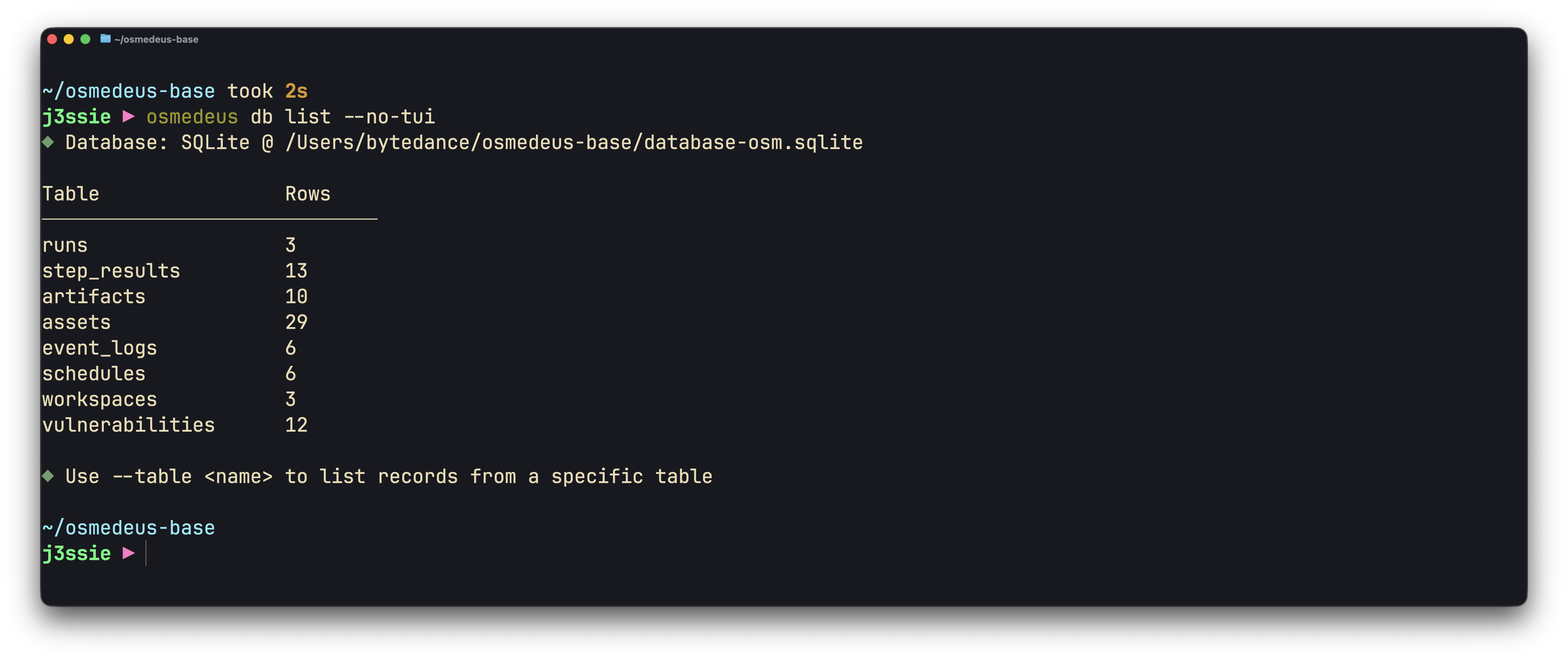
List all database tables with their row counts, or list records from a
specific table with pagination support.
▶ Subcommands
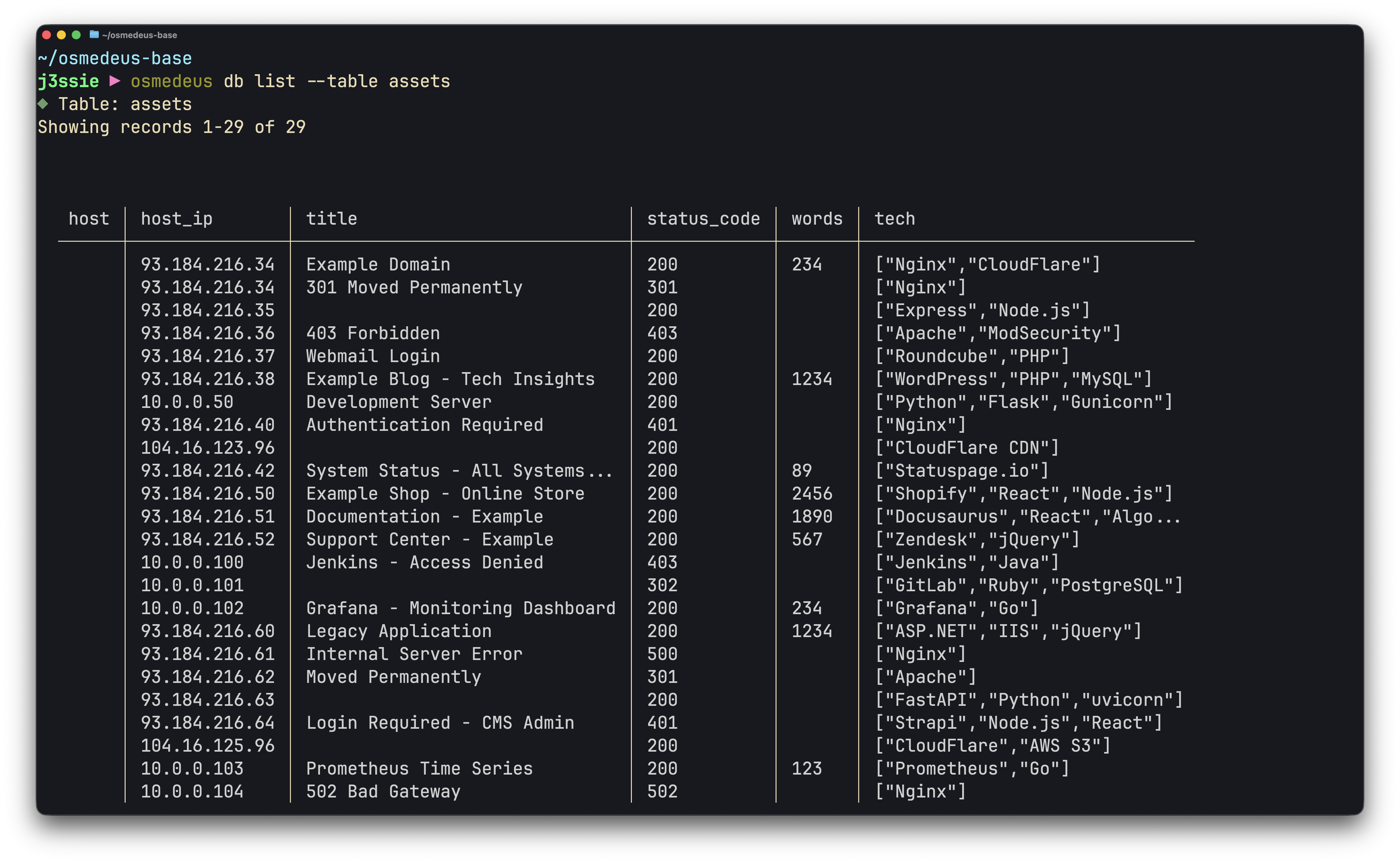
• list (ls) - List database tables and row counts (default)
• seed - Seed database with sample data
• clean - Remove all data from database
• migrate - Run database migrations
• index - Index resources from filesystem to database
▶ Options (list)
-t, --table Table name to list records from
--offset Number of records to skip (default: 0)
--limit Maximum records to return (default: 50)
--list-columns List all available columns for the specified table
--exclude-columns Comma-separated column names to exclude from output
--columns Comma-separated columns to display
--all Show all columns including hidden ones
--search Search all columns for substring
--where Filter records (key=value format, repeatable)
--refresh Auto-refresh interval (e.g., 5s, 1m)
--clear Clear all records from specified table (requires --force)
▶ Valid Tables
runs, step_results, artifacts, assets, event_logs, schedules, workspaces, vulnerabilities
▷ List Examples
# List all tables with row counts
osmedeus db list
# List records from runs table
osmedeus db list -t runs
# List available columns for assets table
osmedeus db list -t assets --list-columns
# List assets excluding specific columns
osmedeus db list -t assets --exclude-columns id,created_at,updated_at
# List assets with pagination
osmedeus db list -t assets --offset 0 --limit 10
# Get next page of results
osmedeus db list -t assets --offset 10 --limit 10
# Auto-refresh every 5 seconds
osmedeus db list -t runs --refresh 5s
# JSON output
osmedeus db list -t runs --json
▷ Seed Examples
# Seed database with sample data
osmedeus db seed
▷ Clean Examples
# Remove all data from database (requires --force)
osmedeus db clean --force
# Remove all data including workspace files
osmedeus db clean --force --clean-ws
▷ Migrate Examples
# Run database migrations
osmedeus db migrate
▷ Index Examples
# Index workflows from filesystem to database
osmedeus db index workflow
# Force re-index all workflows
osmedeus db index workflow --force
```
## 5. Queue Management
Queue tasks for later processing and execute them with controlled concurrency. Tasks can be queued via the `--queue` flag on `osmedeus run` or directly via `osmedeus worker queue new`.
```bash theme={null}
▶ Full Workflow
# Step 1: Queue tasks
osmedeus run --queue -m recon -t example.com
osmedeus run --queue -m recon -T targets.txt
# Step 2: List queued tasks
osmedeus worker queue list
# Step 2b: List as JSON (for scripting)
osmedeus worker queue list --json
# Step 3: Process all queued tasks
osmedeus worker queue run
# Step 3b: Process with higher concurrency
osmedeus worker queue run --concurrency 3
# Step 3c: Process with custom Redis URL
osmedeus worker queue run --redis-url redis://localhost:6379
▶ Shortcut
# Queue and process in one step (alias for 'worker queue run')
osmedeus run --queue-run
osmedeus run --queue-run --concurrency 3
▶ Direct Queue Creation
# Queue a module run
osmedeus worker queue new -m recon -t example.com
# Queue a flow run with targets from file
osmedeus worker queue new -f general -T targets.txt
# Queue with parameters
osmedeus worker queue new -m recon -t example.com -p 'threads=20'
```
## 6. Server
Start the Osmedeus web server that provides REST API endpoints for managing runs, workflows, and settings.
```bash theme={null}
▷ Examples
# Start server with default settings
osmedeus serve
# Start server on custom port
osmedeus serve --port 8080
# Start server without authentication (development only)
osmedeus serve -A
# Start server on specific host without auth
osmedeus serve --host 127.0.0.1 --port 8811 -A
# Start as distributed master node
osmedeus serve --master
# Start server without queue polling
osmedeus serve --no-queue-polling
```
## 7. Worker (Distributed Mode)
Commands for managing worker nodes in distributed scanning mode. Workers connect to Redis and process tasks from the master node.
```bash theme={null}
▶ Subcommands
• join - Join the distributed worker pool
• status - Show worker pool status (alias: ls)
• set - Update a worker field (alias, public-ip, ssh-enabled, ssh-keys-path)
• eval - Evaluate a function expression with distributed hooks
• queue - Manage and process queued tasks (list, new, run)
▷ Join Examples
# Join using settings from osm-settings.yaml
osmedeus worker join
# Join using a specific Redis URL
osmedeus worker join --redis-url redis://user:pass@localhost:6379/0
# Join and auto-detect public IP
osmedeus worker join --get-public-ip
▷ Status
# Show worker status as a table
osmedeus worker status
# Output worker info as JSON
osmedeus worker status --json
▷ Set Worker Fields
# Set an alias for a worker
osmedeus worker set alias scanner-1
# Set public IP
osmedeus worker set scanner-1 public-ip 203.0.113.10
# Enable SSH
osmedeus worker set scanner-1 ssh-enabled true
# With custom Redis URL
osmedeus worker set alias prod-1 --redis-url redis://localhost:6379
▷ Eval (one-shot with distributed hooks)
# Simple function eval with distributed hooks
osmedeus worker eval 'log_info("hello from worker eval")' --redis-url redis://localhost:6379
# Route a call to the master node
osmedeus worker eval 'run_on_master("func", "log_info(\"routed via redis\")")' --redis-url redis://localhost:6379
# With target variable
osmedeus worker eval 'log_info("hello")' -t example.com --redis-url redis://localhost:6379
# Read script from stdin
echo 'run_on_master("func", "db_import_sarif(\"ws\", \"/path/f.sarif\")")' | osmedeus worker eval --stdin --redis-url redis://localhost:6379
```
## 8. Webhook Triggers
Register runs as webhook triggers that can be invoked via HTTP requests. This allows external systems (CI/CD, monitoring tools, etc.) to trigger scans on demand.
Webhook triggers require the server to have `enable_trigger_via_webhook: true` in `osm-settings.yaml`.
```bash theme={null}
▶ Setup
# Step 1: Register a webhook trigger
osmedeus run --as-webhook -m recon -t example.com
# Register with an authentication key for security
osmedeus run --as-webhook -m recon -t example.com --webhook-auth-key my-secret-key
▶ Management
# List all registered webhook triggers
osmedeus worker webhooks
# List as JSON (for scripting)
osmedeus --json worker webhooks
▶ Triggering via HTTP
# Trigger a webhook (GET - no overrides)
curl https://your-server/osm/api/webhook-runs//trigger
# Trigger with authentication key
curl https://your-server/osm/api/webhook-runs//trigger?key=my-secret-key
# Trigger via POST with target override
curl -X POST https://your-server/osm/api/webhook-runs//trigger \
-H 'Content-Type: application/json' \
-d '{"target": "new-target.com"}'
# Trigger via POST with workflow override
curl -X POST https://your-server/osm/api/webhook-runs//trigger \
-H 'Content-Type: application/json' \
-d '{"target": "example.com", "module": "subdomain"}'
▶ Configuration
# Enable webhook triggering on the server
osmedeus config set server.enable_trigger_via_webhook true
```
## 9. Assets
```bash theme={null}
◆ Description
List all database tables with their row counts, or list records from a
specific table with pagination support.
▶ Subcommands
• list (ls) - List database tables and row counts (default)
• seed - Seed database with sample data
• clean - Remove all data from database
• migrate - Run database migrations
• index - Index resources from filesystem to database
▶ Options (list)
-t, --table Table name to list records from
--offset Number of records to skip (default: 0)
--limit Maximum records to return (default: 50)
--list-columns List all available columns for the specified table
--exclude-columns Comma-separated column names to exclude from output
--columns Comma-separated columns to display
--all Show all columns including hidden ones
--search Search all columns for substring
--where Filter records (key=value format, repeatable)
--refresh Auto-refresh interval (e.g., 5s, 1m)
--clear Clear all records from specified table (requires --force)
▶ Valid Tables
runs, step_results, artifacts, assets, event_logs, schedules, workspaces, vulnerabilities
▷ List Examples
# List all tables with row counts
osmedeus db list
# List records from runs table
osmedeus db list -t runs
# List available columns for assets table
osmedeus db list -t assets --list-columns
# List assets excluding specific columns
osmedeus db list -t assets --exclude-columns id,created_at,updated_at
# List assets with pagination
osmedeus db list -t assets --offset 0 --limit 10
# Get next page of results
osmedeus db list -t assets --offset 10 --limit 10
# Auto-refresh every 5 seconds
osmedeus db list -t runs --refresh 5s
# JSON output
osmedeus db list -t runs --json
▷ Seed Examples
# Seed database with sample data
osmedeus db seed
▷ Clean Examples
# Remove all data from database (requires --force)
osmedeus db clean --force
# Remove all data including workspace files
osmedeus db clean --force --clean-ws
▷ Migrate Examples
# Run database migrations
osmedeus db migrate
▷ Index Examples
# Index workflows from filesystem to database
osmedeus db index workflow
# Force re-index all workflows
osmedeus db index workflow --force
```
## 5. Queue Management
Queue tasks for later processing and execute them with controlled concurrency. Tasks can be queued via the `--queue` flag on `osmedeus run` or directly via `osmedeus worker queue new`.
```bash theme={null}
▶ Full Workflow
# Step 1: Queue tasks
osmedeus run --queue -m recon -t example.com
osmedeus run --queue -m recon -T targets.txt
# Step 2: List queued tasks
osmedeus worker queue list
# Step 2b: List as JSON (for scripting)
osmedeus worker queue list --json
# Step 3: Process all queued tasks
osmedeus worker queue run
# Step 3b: Process with higher concurrency
osmedeus worker queue run --concurrency 3
# Step 3c: Process with custom Redis URL
osmedeus worker queue run --redis-url redis://localhost:6379
▶ Shortcut
# Queue and process in one step (alias for 'worker queue run')
osmedeus run --queue-run
osmedeus run --queue-run --concurrency 3
▶ Direct Queue Creation
# Queue a module run
osmedeus worker queue new -m recon -t example.com
# Queue a flow run with targets from file
osmedeus worker queue new -f general -T targets.txt
# Queue with parameters
osmedeus worker queue new -m recon -t example.com -p 'threads=20'
```
## 6. Server
Start the Osmedeus web server that provides REST API endpoints for managing runs, workflows, and settings.
```bash theme={null}
▷ Examples
# Start server with default settings
osmedeus serve
# Start server on custom port
osmedeus serve --port 8080
# Start server without authentication (development only)
osmedeus serve -A
# Start server on specific host without auth
osmedeus serve --host 127.0.0.1 --port 8811 -A
# Start as distributed master node
osmedeus serve --master
# Start server without queue polling
osmedeus serve --no-queue-polling
```
## 7. Worker (Distributed Mode)
Commands for managing worker nodes in distributed scanning mode. Workers connect to Redis and process tasks from the master node.
```bash theme={null}
▶ Subcommands
• join - Join the distributed worker pool
• status - Show worker pool status (alias: ls)
• set - Update a worker field (alias, public-ip, ssh-enabled, ssh-keys-path)
• eval - Evaluate a function expression with distributed hooks
• queue - Manage and process queued tasks (list, new, run)
▷ Join Examples
# Join using settings from osm-settings.yaml
osmedeus worker join
# Join using a specific Redis URL
osmedeus worker join --redis-url redis://user:pass@localhost:6379/0
# Join and auto-detect public IP
osmedeus worker join --get-public-ip
▷ Status
# Show worker status as a table
osmedeus worker status
# Output worker info as JSON
osmedeus worker status --json
▷ Set Worker Fields
# Set an alias for a worker
osmedeus worker set alias scanner-1
# Set public IP
osmedeus worker set scanner-1 public-ip 203.0.113.10
# Enable SSH
osmedeus worker set scanner-1 ssh-enabled true
# With custom Redis URL
osmedeus worker set alias prod-1 --redis-url redis://localhost:6379
▷ Eval (one-shot with distributed hooks)
# Simple function eval with distributed hooks
osmedeus worker eval 'log_info("hello from worker eval")' --redis-url redis://localhost:6379
# Route a call to the master node
osmedeus worker eval 'run_on_master("func", "log_info(\"routed via redis\")")' --redis-url redis://localhost:6379
# With target variable
osmedeus worker eval 'log_info("hello")' -t example.com --redis-url redis://localhost:6379
# Read script from stdin
echo 'run_on_master("func", "db_import_sarif(\"ws\", \"/path/f.sarif\")")' | osmedeus worker eval --stdin --redis-url redis://localhost:6379
```
## 8. Webhook Triggers
Register runs as webhook triggers that can be invoked via HTTP requests. This allows external systems (CI/CD, monitoring tools, etc.) to trigger scans on demand.
Webhook triggers require the server to have `enable_trigger_via_webhook: true` in `osm-settings.yaml`.
```bash theme={null}
▶ Setup
# Step 1: Register a webhook trigger
osmedeus run --as-webhook -m recon -t example.com
# Register with an authentication key for security
osmedeus run --as-webhook -m recon -t example.com --webhook-auth-key my-secret-key
▶ Management
# List all registered webhook triggers
osmedeus worker webhooks
# List as JSON (for scripting)
osmedeus --json worker webhooks
▶ Triggering via HTTP
# Trigger a webhook (GET - no overrides)
curl https://your-server/osm/api/webhook-runs//trigger
# Trigger with authentication key
curl https://your-server/osm/api/webhook-runs//trigger?key=my-secret-key
# Trigger via POST with target override
curl -X POST https://your-server/osm/api/webhook-runs//trigger \
-H 'Content-Type: application/json' \
-d '{"target": "new-target.com"}'
# Trigger via POST with workflow override
curl -X POST https://your-server/osm/api/webhook-runs//trigger \
-H 'Content-Type: application/json' \
-d '{"target": "example.com", "module": "subdomain"}'
▶ Configuration
# Enable webhook triggering on the server
osmedeus config set server.enable_trigger_via_webhook true
```
## 9. Assets
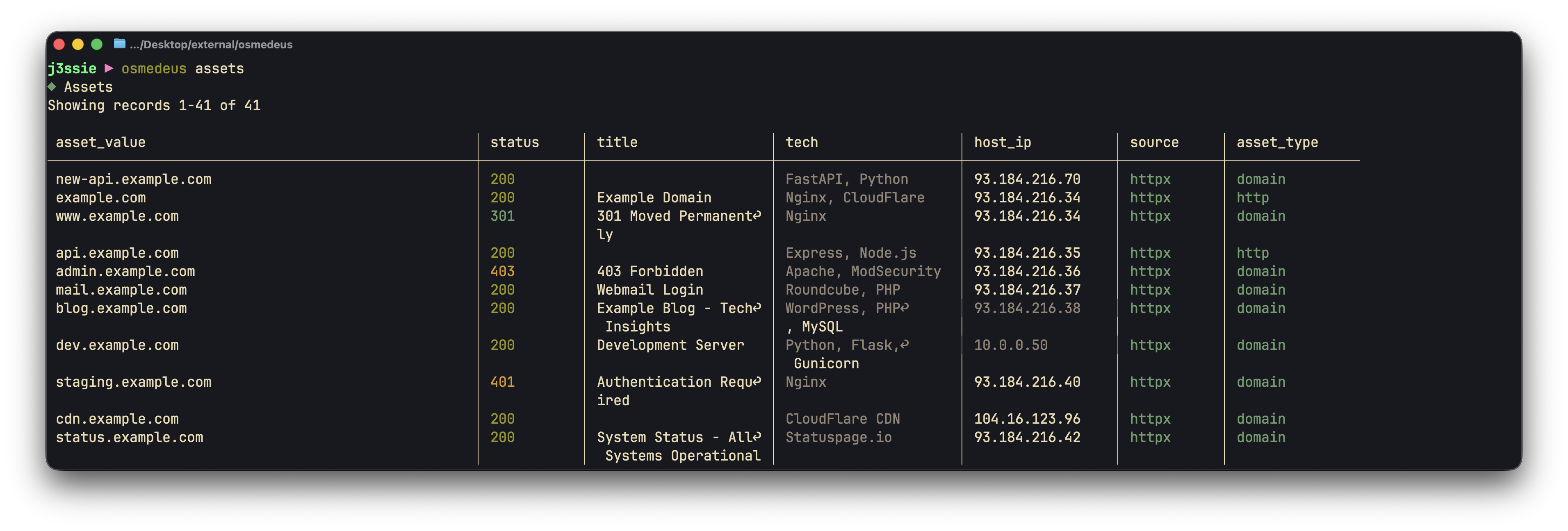 Query and list discovered assets from the database. A shortcut for `osmedeus db ls -t assets` with first-class support for fuzzy search, source/type filtering, and asset statistics.
```bash theme={null}
▷ Examples
# List all assets (default columns)
osmedeus assets
# Fuzzy search across asset fields
osmedeus assets example.com
# Filter by workspace
osmedeus assets -w myworkspace
# Filter by source
osmedeus assets --source httpx
# Filter by asset type
osmedeus assets --type web
# Combined filters
osmedeus assets --source httpx --type web
# Show asset statistics
osmedeus assets --stats
# Stats filtered by workspace
osmedeus assets --stats -w myworkspace
# With pagination
osmedeus assets example.com --limit 100
# JSON output
osmedeus assets example.com --json
# Custom columns
osmedeus assets --columns "asset_value,url,status_code"
```
| Flag | Short | Default | Description |
| ------------------- | ----- | ------- | -------------------------------------------- |
| `--workspace` | `-w` | `""` | Filter by workspace name |
| `--source` | — | `""` | Filter by source (e.g., httpx, subfinder) |
| `--type` | — | `""` | Filter by asset\_type (e.g., web, subdomain) |
| `--stats` | — | `false` | Show asset statistics |
| `--limit` | — | `50` | Max records to return |
| `--offset` | — | `0` | Records to skip (for pagination) |
| `--columns` | — | `""` | Comma-separated columns to display |
| `--exclude-columns` | — | `""` | Columns to exclude from output |
| `--all` | — | `false` | Show all columns including hidden ones |
## 10. Snapshot
Export and import workspace snapshots as compressed ZIP archives.
```bash theme={null}
▷ Export
# Export a workspace to a snapshot
osmedeus snapshot export
# Export with custom output path
osmedeus snapshot export -o /path/to/output.zip
▷ Import
# Import from a local file
osmedeus snapshot import /path/to/snapshot.zip
# Import from a URL
osmedeus snapshot import https://example.com/snapshot.zip
# Import files only (skip database import)
osmedeus snapshot import /path/to/snapshot.zip --skip-db
# Import without confirmation prompt
osmedeus snapshot import /path/to/snapshot.zip --force
▷ List
# List available snapshots
osmedeus snapshot list
```
## 11. Client (Remote Server)
Interact with a remote osmedeus server via REST API. Requires environment variables for connection.
```bash theme={null}
▶ Environment Setup
export OSM_REMOTE_URL="http://localhost:8002"
export OSM_REMOTE_AUTH_KEY="your-api-key"
▶ Subcommands
• fetch - Fetch data from server (runs, assets, vulns, etc.)
• run - Create or cancel a run
• exec - Execute a function remotely
▷ Fetch Examples
# Fetch assets (default table)
osmedeus client fetch
osmedeus client fetch -t assets -w example.com
# Fetch runs
osmedeus client fetch --table runs
osmedeus client fetch -t runs --status running
# Fetch vulnerabilities with severity filter
osmedeus client fetch -t vulnerabilities --severity critical
# Fetch step results
osmedeus client fetch -t step_results
# Pagination
osmedeus client fetch -t assets --limit 50 --offset 100
# JSON output
osmedeus client --json fetch -t runs
▷ Run Examples
# Create a flow run
osmedeus client run -f basic-recon -T example.com
# Create a module run
osmedeus client run -m subdomain -T example.com
# Cancel a run by ID
osmedeus client run --cancel abc123-run-uuid
# JSON output
osmedeus client --json run -f recon -T example.com
▷ Exec Examples
# Execute a simple function
osmedeus client exec 'log_info("Hello from remote")'
# With target variable
osmedeus client exec -t example.com 'fileExists("{{target}}/output.txt")'
# Using --script flag
osmedeus client exec -s 'trim(" hello ")'
# JSON output
osmedeus client --json exec 'trim(" test ")'
```
## 12. Uninstall
Remove the Osmedeus installation including base folder, configuration, and optionally workspace data.
```bash theme={null}
▶ What Gets Removed
• ~/osmedeus-base - Settings, workflows, binaries, data
• ~/.osmedeus - Initialization marker
• osmedeus binary - Removed from PATH (up to 3 locations)
With --clean:
• ~/workspaces-osmedeus - All scan results and workspace data
▷ Examples
# Preview what will be removed (shows confirmation prompt)
osmedeus uninstall
# Uninstall without workspaces (keeps scan results)
osmedeus uninstall --force
# Full uninstall including all scan data
osmedeus uninstall --force --clean
```
## 13. Config Management
Manage osmedeus configuration settings using dot notation.
```bash theme={null}
▶ Subcommands
• clean - Reset configuration to defaults
• set - Set a configuration value
• view - View a configuration value
• list - List configuration values
▷ Set Examples
osmedeus config set server.port 9000
osmedeus config set server.username admin
osmedeus config set server.password "d8506b99a052e797f73d1dab"
osmedeus config set server.jwt.secret_signing_key "d8506b99a052e797f73d1dab"
osmedeus config set scan_tactic.default 20
osmedeus config set global_vars.github_token ghp_xxx
osmedeus config set notification.enabled true
▷ View Examples
# Exact key lookup
osmedeus config view server.port
osmedeus config view server.username
osmedeus config view server.jwt.secret_signing_key --redact
# Wildcard pattern search (requires --force)
osmedeus config view 'server.*' --force
osmedeus config view 'database.*' --force
osmedeus config view '*password*' --force
osmedeus config view 'server.*' --force --redact
▷ List and Clean
# List all config values
osmedeus config list
# List including secrets
osmedeus config list --show-secrets
# Reset config to defaults (backs up existing config first)
osmedeus config clean
```
## 14. Cloud Infrastructure
Provision and manage cloud infrastructure for distributed scanning. Supports multiple providers (DigitalOcean, AWS, GCP, Linode, Azure).
```bash theme={null}
▶ Subcommands
• config - Manage cloud configuration (set, list)
• create - Create cloud infrastructure
• list - List active cloud infrastructure
• destroy - Destroy cloud infrastructure
• run - Run workflow on cloud infrastructure
▷ Configuration
# Set cloud provider
osmedeus cloud config set defaults.provider digitalocean
# Set provider credentials
osmedeus cloud config set providers.digitalocean.token dop_v1_xxxx
osmedeus cloud config set providers.digitalocean.region nyc1
osmedeus cloud config set providers.digitalocean.size s-2vcpu-4gb
# AWS configuration
osmedeus cloud config set providers.aws.access_key_id AKIAXXXX
osmedeus cloud config set providers.aws.secret_access_key xxxx
osmedeus cloud config set providers.aws.region us-east-1
# Set limits
osmedeus cloud config set limits.max_instances 10
osmedeus cloud config set limits.max_hourly_spend 5.00
# List all cloud configuration values
osmedeus cloud config list
# List including secrets
osmedeus cloud config list --show-secrets
▷ Infrastructure Management
# Create cloud instances
osmedeus cloud create --instances 3
# Create with specific provider and mode
osmedeus cloud create --provider digitalocean --mode vm --instances 5
# List active infrastructure
osmedeus cloud list
# Destroy infrastructure by ID
osmedeus cloud destroy
▷ Cloud Run
# Run workflow on cloud infrastructure
osmedeus cloud run -f general -t example.com --instances 3
```
## 15. Workflow Management
List, view, search, and validate available workflows.
```bash theme={null}
▶ Subcommands
• list (ls) - List available workflows (default)
• show (view) - Show workflow details
• validate - Validate and lint workflow(s)
• install - Install workflows from source
▷ List Workflows
# List all available workflows
osmedeus workflow list
# Search workflows by name, description, or tags
osmedeus workflow ls recon
osmedeus workflow ls --search subdomain
# Filter by tags
osmedeus workflow ls --tags recon,fast
# Show tags column
osmedeus workflow ls --show-tags
# Show usage info
osmedeus workflow ls --usage
# Show workflows with parse errors (verbose mode)
osmedeus workflow ls -v
▷ Show Workflow Details
# Show workflow details in table format
osmedeus workflow show general
# Show with verbose variable descriptions
osmedeus workflow show general -v
# Show raw YAML with syntax highlighting
osmedeus workflow show general --yaml
▷ Validate / Lint Workflows
# Validate a workflow by name
osmedeus workflow validate my-module
# Validate a YAML file
osmedeus workflow lint ./my-workflow.yaml
# Validate all workflows in a folder
osmedeus workflow validate /path/to/workflows/
# Stop on first failure
osmedeus workflow validate . --fail-fast
# CI mode (exit with error code if issues found)
osmedeus workflow lint my-workflow.yaml --check
# JSON output format
osmedeus workflow lint my-workflow.yaml --format json
# GitHub Actions annotation format
osmedeus workflow lint my-workflow.yaml --format github
# Disable specific lint rules
osmedeus workflow validate . --disable unused-variable
# Filter by minimum severity
osmedeus workflow lint my-workflow.yaml --severity error
▷ Install Workflows
# Install from git URL
osmedeus workflow install https://github.com/user/osmedeus-workflows.git
# Install from preset (uses OSM_WORKFLOW_URL or default)
osmedeus workflow install --preset
```
## 16. Update
Update osmedeus to the latest version from GitHub releases.
```bash theme={null}
▷ Examples
# Check for updates without installing
osmedeus update --check
# Update to latest version
osmedeus update
# Skip confirmation prompt
osmedeus update --yes
# Force reinstall current version
osmedeus update --force
# Update to a specific version
osmedeus update --version v5.1.0
```
## 17. Version
Print version and build information.
```bash theme={null}
▷ Examples
# Show version info
osmedeus version
# JSON output
osmedeus --json version
```
## 18. Agent (ACP)
Run an ACP (Agent Communication Protocol) agent interactively from the terminal. The agent command spawns an external AI coding agent as a subprocess and communicates via ACP.
```bash theme={null}
◆ Description
Run an ACP agent interactively. Supports multiple agent backends.
▶ Available Agents
• claude-code - Claude Code (default) — npx @zed-industries/claude-code-acp@latest
• codex - OpenAI Codex — npx @zed-industries/codex-acp
• opencode - OpenCode — opencode acp
• gemini - Google Gemini — gemini --experimental-acp
▷ Examples
# Run with default agent (claude-code)
osmedeus agent "Analyze the scan results in /tmp/output"
# Use a specific agent
osmedeus agent --agent codex "Review this code for vulnerabilities"
# List available agents
osmedeus agent --list
# Set working directory
osmedeus agent --cwd /path/to/project "Summarize the findings"
# Custom timeout (default: 30m)
osmedeus agent --timeout 1h "Perform a thorough analysis"
# Read message from stdin
echo "Analyze this output" | osmedeus agent --stdin
# Pipe with dash shorthand
cat prompt.txt | osmedeus agent -
```
| Flag | Default | Description |
| ----------- | ------------- | ------------------------------------------------ |
| `--agent` | `claude-code` | Agent to use (see `--list` for available agents) |
| `--cwd` | current dir | Working directory for the agent |
| `--stdin` | `false` | Read message from stdin |
| `--timeout` | `30m` | Timeout duration (e.g., 30m, 1h) |
| `--list` | `false` | List available agents |
## Full Usage Examples
See [Full Usage Examples](/reference/cli-references) for full CLI usage examples.
Query and list discovered assets from the database. A shortcut for `osmedeus db ls -t assets` with first-class support for fuzzy search, source/type filtering, and asset statistics.
```bash theme={null}
▷ Examples
# List all assets (default columns)
osmedeus assets
# Fuzzy search across asset fields
osmedeus assets example.com
# Filter by workspace
osmedeus assets -w myworkspace
# Filter by source
osmedeus assets --source httpx
# Filter by asset type
osmedeus assets --type web
# Combined filters
osmedeus assets --source httpx --type web
# Show asset statistics
osmedeus assets --stats
# Stats filtered by workspace
osmedeus assets --stats -w myworkspace
# With pagination
osmedeus assets example.com --limit 100
# JSON output
osmedeus assets example.com --json
# Custom columns
osmedeus assets --columns "asset_value,url,status_code"
```
| Flag | Short | Default | Description |
| ------------------- | ----- | ------- | -------------------------------------------- |
| `--workspace` | `-w` | `""` | Filter by workspace name |
| `--source` | — | `""` | Filter by source (e.g., httpx, subfinder) |
| `--type` | — | `""` | Filter by asset\_type (e.g., web, subdomain) |
| `--stats` | — | `false` | Show asset statistics |
| `--limit` | — | `50` | Max records to return |
| `--offset` | — | `0` | Records to skip (for pagination) |
| `--columns` | — | `""` | Comma-separated columns to display |
| `--exclude-columns` | — | `""` | Columns to exclude from output |
| `--all` | — | `false` | Show all columns including hidden ones |
## 10. Snapshot
Export and import workspace snapshots as compressed ZIP archives.
```bash theme={null}
▷ Export
# Export a workspace to a snapshot
osmedeus snapshot export
# Export with custom output path
osmedeus snapshot export -o /path/to/output.zip
▷ Import
# Import from a local file
osmedeus snapshot import /path/to/snapshot.zip
# Import from a URL
osmedeus snapshot import https://example.com/snapshot.zip
# Import files only (skip database import)
osmedeus snapshot import /path/to/snapshot.zip --skip-db
# Import without confirmation prompt
osmedeus snapshot import /path/to/snapshot.zip --force
▷ List
# List available snapshots
osmedeus snapshot list
```
## 11. Client (Remote Server)
Interact with a remote osmedeus server via REST API. Requires environment variables for connection.
```bash theme={null}
▶ Environment Setup
export OSM_REMOTE_URL="http://localhost:8002"
export OSM_REMOTE_AUTH_KEY="your-api-key"
▶ Subcommands
• fetch - Fetch data from server (runs, assets, vulns, etc.)
• run - Create or cancel a run
• exec - Execute a function remotely
▷ Fetch Examples
# Fetch assets (default table)
osmedeus client fetch
osmedeus client fetch -t assets -w example.com
# Fetch runs
osmedeus client fetch --table runs
osmedeus client fetch -t runs --status running
# Fetch vulnerabilities with severity filter
osmedeus client fetch -t vulnerabilities --severity critical
# Fetch step results
osmedeus client fetch -t step_results
# Pagination
osmedeus client fetch -t assets --limit 50 --offset 100
# JSON output
osmedeus client --json fetch -t runs
▷ Run Examples
# Create a flow run
osmedeus client run -f basic-recon -T example.com
# Create a module run
osmedeus client run -m subdomain -T example.com
# Cancel a run by ID
osmedeus client run --cancel abc123-run-uuid
# JSON output
osmedeus client --json run -f recon -T example.com
▷ Exec Examples
# Execute a simple function
osmedeus client exec 'log_info("Hello from remote")'
# With target variable
osmedeus client exec -t example.com 'fileExists("{{target}}/output.txt")'
# Using --script flag
osmedeus client exec -s 'trim(" hello ")'
# JSON output
osmedeus client --json exec 'trim(" test ")'
```
## 12. Uninstall
Remove the Osmedeus installation including base folder, configuration, and optionally workspace data.
```bash theme={null}
▶ What Gets Removed
• ~/osmedeus-base - Settings, workflows, binaries, data
• ~/.osmedeus - Initialization marker
• osmedeus binary - Removed from PATH (up to 3 locations)
With --clean:
• ~/workspaces-osmedeus - All scan results and workspace data
▷ Examples
# Preview what will be removed (shows confirmation prompt)
osmedeus uninstall
# Uninstall without workspaces (keeps scan results)
osmedeus uninstall --force
# Full uninstall including all scan data
osmedeus uninstall --force --clean
```
## 13. Config Management
Manage osmedeus configuration settings using dot notation.
```bash theme={null}
▶ Subcommands
• clean - Reset configuration to defaults
• set - Set a configuration value
• view - View a configuration value
• list - List configuration values
▷ Set Examples
osmedeus config set server.port 9000
osmedeus config set server.username admin
osmedeus config set server.password "d8506b99a052e797f73d1dab"
osmedeus config set server.jwt.secret_signing_key "d8506b99a052e797f73d1dab"
osmedeus config set scan_tactic.default 20
osmedeus config set global_vars.github_token ghp_xxx
osmedeus config set notification.enabled true
▷ View Examples
# Exact key lookup
osmedeus config view server.port
osmedeus config view server.username
osmedeus config view server.jwt.secret_signing_key --redact
# Wildcard pattern search (requires --force)
osmedeus config view 'server.*' --force
osmedeus config view 'database.*' --force
osmedeus config view '*password*' --force
osmedeus config view 'server.*' --force --redact
▷ List and Clean
# List all config values
osmedeus config list
# List including secrets
osmedeus config list --show-secrets
# Reset config to defaults (backs up existing config first)
osmedeus config clean
```
## 14. Cloud Infrastructure
Provision and manage cloud infrastructure for distributed scanning. Supports multiple providers (DigitalOcean, AWS, GCP, Linode, Azure).
```bash theme={null}
▶ Subcommands
• config - Manage cloud configuration (set, list)
• create - Create cloud infrastructure
• list - List active cloud infrastructure
• destroy - Destroy cloud infrastructure
• run - Run workflow on cloud infrastructure
▷ Configuration
# Set cloud provider
osmedeus cloud config set defaults.provider digitalocean
# Set provider credentials
osmedeus cloud config set providers.digitalocean.token dop_v1_xxxx
osmedeus cloud config set providers.digitalocean.region nyc1
osmedeus cloud config set providers.digitalocean.size s-2vcpu-4gb
# AWS configuration
osmedeus cloud config set providers.aws.access_key_id AKIAXXXX
osmedeus cloud config set providers.aws.secret_access_key xxxx
osmedeus cloud config set providers.aws.region us-east-1
# Set limits
osmedeus cloud config set limits.max_instances 10
osmedeus cloud config set limits.max_hourly_spend 5.00
# List all cloud configuration values
osmedeus cloud config list
# List including secrets
osmedeus cloud config list --show-secrets
▷ Infrastructure Management
# Create cloud instances
osmedeus cloud create --instances 3
# Create with specific provider and mode
osmedeus cloud create --provider digitalocean --mode vm --instances 5
# List active infrastructure
osmedeus cloud list
# Destroy infrastructure by ID
osmedeus cloud destroy
▷ Cloud Run
# Run workflow on cloud infrastructure
osmedeus cloud run -f general -t example.com --instances 3
```
## 15. Workflow Management
List, view, search, and validate available workflows.
```bash theme={null}
▶ Subcommands
• list (ls) - List available workflows (default)
• show (view) - Show workflow details
• validate - Validate and lint workflow(s)
• install - Install workflows from source
▷ List Workflows
# List all available workflows
osmedeus workflow list
# Search workflows by name, description, or tags
osmedeus workflow ls recon
osmedeus workflow ls --search subdomain
# Filter by tags
osmedeus workflow ls --tags recon,fast
# Show tags column
osmedeus workflow ls --show-tags
# Show usage info
osmedeus workflow ls --usage
# Show workflows with parse errors (verbose mode)
osmedeus workflow ls -v
▷ Show Workflow Details
# Show workflow details in table format
osmedeus workflow show general
# Show with verbose variable descriptions
osmedeus workflow show general -v
# Show raw YAML with syntax highlighting
osmedeus workflow show general --yaml
▷ Validate / Lint Workflows
# Validate a workflow by name
osmedeus workflow validate my-module
# Validate a YAML file
osmedeus workflow lint ./my-workflow.yaml
# Validate all workflows in a folder
osmedeus workflow validate /path/to/workflows/
# Stop on first failure
osmedeus workflow validate . --fail-fast
# CI mode (exit with error code if issues found)
osmedeus workflow lint my-workflow.yaml --check
# JSON output format
osmedeus workflow lint my-workflow.yaml --format json
# GitHub Actions annotation format
osmedeus workflow lint my-workflow.yaml --format github
# Disable specific lint rules
osmedeus workflow validate . --disable unused-variable
# Filter by minimum severity
osmedeus workflow lint my-workflow.yaml --severity error
▷ Install Workflows
# Install from git URL
osmedeus workflow install https://github.com/user/osmedeus-workflows.git
# Install from preset (uses OSM_WORKFLOW_URL or default)
osmedeus workflow install --preset
```
## 16. Update
Update osmedeus to the latest version from GitHub releases.
```bash theme={null}
▷ Examples
# Check for updates without installing
osmedeus update --check
# Update to latest version
osmedeus update
# Skip confirmation prompt
osmedeus update --yes
# Force reinstall current version
osmedeus update --force
# Update to a specific version
osmedeus update --version v5.1.0
```
## 17. Version
Print version and build information.
```bash theme={null}
▷ Examples
# Show version info
osmedeus version
# JSON output
osmedeus --json version
```
## 18. Agent (ACP)
Run an ACP (Agent Communication Protocol) agent interactively from the terminal. The agent command spawns an external AI coding agent as a subprocess and communicates via ACP.
```bash theme={null}
◆ Description
Run an ACP agent interactively. Supports multiple agent backends.
▶ Available Agents
• claude-code - Claude Code (default) — npx @zed-industries/claude-code-acp@latest
• codex - OpenAI Codex — npx @zed-industries/codex-acp
• opencode - OpenCode — opencode acp
• gemini - Google Gemini — gemini --experimental-acp
▷ Examples
# Run with default agent (claude-code)
osmedeus agent "Analyze the scan results in /tmp/output"
# Use a specific agent
osmedeus agent --agent codex "Review this code for vulnerabilities"
# List available agents
osmedeus agent --list
# Set working directory
osmedeus agent --cwd /path/to/project "Summarize the findings"
# Custom timeout (default: 30m)
osmedeus agent --timeout 1h "Perform a thorough analysis"
# Read message from stdin
echo "Analyze this output" | osmedeus agent --stdin
# Pipe with dash shorthand
cat prompt.txt | osmedeus agent -
```
| Flag | Default | Description |
| ----------- | ------------- | ------------------------------------------------ |
| `--agent` | `claude-code` | Agent to use (see `--list` for available agents) |
| `--cwd` | current dir | Working directory for the agent |
| `--stdin` | `false` | Read message from stdin |
| `--timeout` | `30m` | Timeout duration (e.g., 30m, 1h) |
| `--list` | `false` | List available agents |
## Full Usage Examples
See [Full Usage Examples](/reference/cli-references) for full CLI usage examples.